




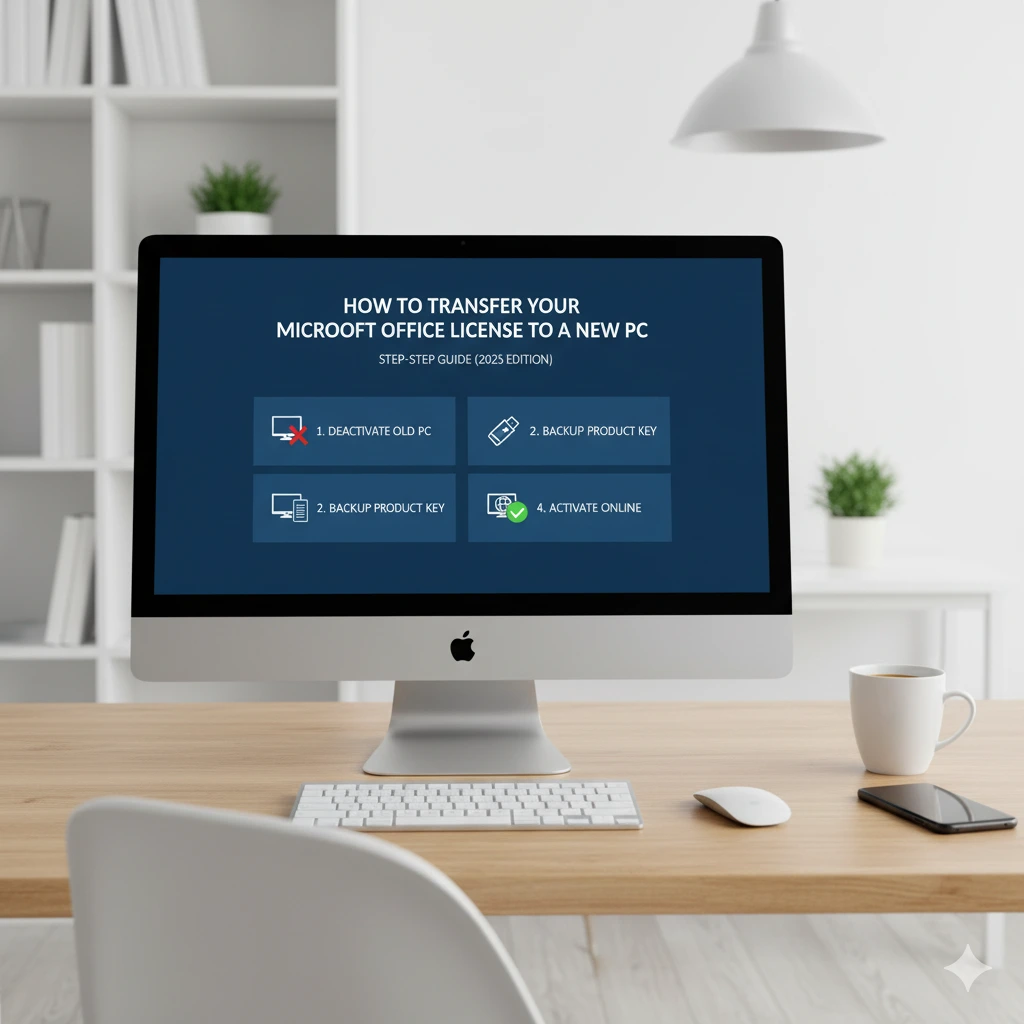
How to Transfer Your Microsoft Office License to a New PC (2025 Step-by-Step Guide)

📜 Meta Description:
Got a new computer? Learn how to transfer your Microsoft Office license to another PC safely and easily. Includes steps for Office 2019, 2021, and 2024 Professional Plus.
💡 Introduction
If you’ve purchased a new PC or upgraded your old one, you might wonder: Can I transfer my Microsoft Office license to the new device?
The answer is yes, as long as you have a genuine, transferable license such as Office 2019, 2021, or 2024 Professional Plus.
In this guide, we’ll show you exactly how to deactivate Office on your old computer and reactivate it on a new one — step by step.
🧩 Step 1: Check Your License Type
Before transferring, confirm that your Office license allows it.
| License Type | Transfer Allowed? | Notes |
|---|---|---|
| Retail License | ✅ Yes | Can be moved to another PC anytime. |
| OEM License | ❌ No | Tied to the first computer it was installed on. |
| Volume License | ⚙️ Sometimes | Used by businesses; depends on contract. |
If you bought your Office key from sortedkeys.com, you have a Retail License, which can be safely transferred.
🔑 Step 2: Deactivate Office on the Old PC
You must remove the activation from your old computer before using it on a new one.
To deactivate:
- Open any Office app (like Word or Excel).
- Go to File → Account.
- Click Sign out of your Microsoft account.
- Uninstall Office from the old PC:
- Go to Control Panel → Programs → Uninstall a program → Microsoft Office → Uninstall.
💡 This ensures Microsoft’s activation server frees your license for reuse.
🧰 Step 3: Install Office on the New PC
Now you’re ready to install Office on your new computer.
Steps:
- Go to the official Microsoft setup page: https://setup.office.com
- Sign in with your Microsoft account (the one linked to your license).
- Choose your Office version (2019 / 2021 / 2024).
- Download and run the installer.
⚙️ Step 4: Activate Office on the New PC
After installation:
- Launch any Office app (like Word).
- Click Sign In.
- Enter your 25-character activation key (example: XXXXX-XXXXX-XXXXX-XXXXX-XXXXX).
- Click Activate Office.
Office will now verify your license and activate it on the new PC.
🧩 Step 5: Troubleshooting Transfer Errors
If activation fails after the transfer, try the following:
- Ensure you completely uninstalled Office from the old computer.
- Sign in with the same Microsoft account used for the original activation.
- Run the activation troubleshooter under Settings → Activation.
- Contact Microsoft Support if you see a “license already in use” message.
💬 Conclusion
Transferring your Microsoft Office license to a new PC is quick and easy — as long as you use a genuine retail activation key.
If you’re upgrading or need a new license, you can instantly get one for:
- 💼 Office 2019 Professional Plus
- 💼 Office 2021 Professional Plus
- 💼 Office 2024 Professional Plus
👉 Available now at sortedkeys.com with lifetime activation and instant delivery.