Windows 10 vs Windows 11: Should You Upgrade in 2026?

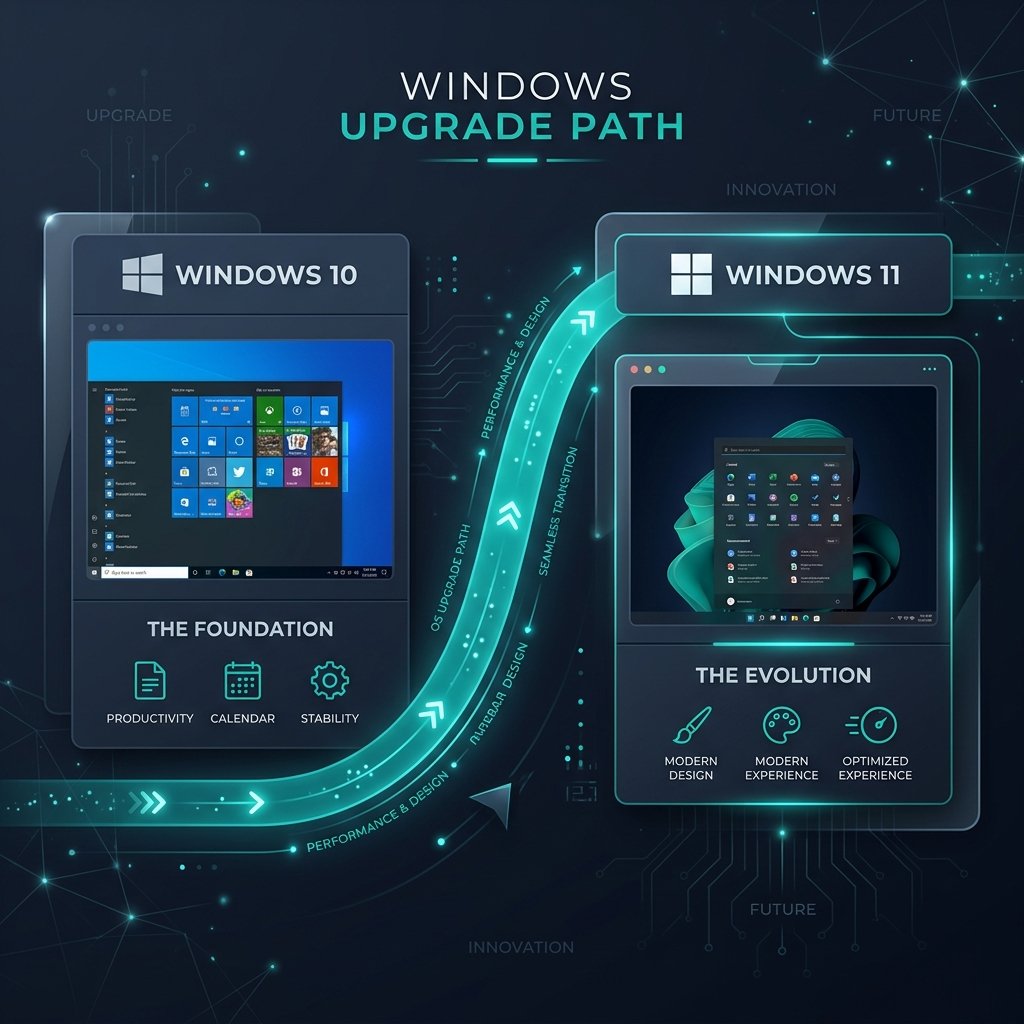
The debate between Windows 10 vs Windows 11 is more relevant than ever. With the official Windows 10 end-of-support date quickly approaching, millions of users are asking whether they should make the leap to Microsoft’s latest operating system. In this guide, we will break down exactly what you get when you upgrade, how gaming performance compares, and why you shouldn’t wait until the last minute.
To give you the short answer: Yes, you should upgrade to Windows 11 in 2026. Aside from receiving critical security updates that Windows 10 will soon lose, Windows 11 provides significantly better hardware scheduling for modern processors, advanced AI integration (Copilot), and superior gaming features like DirectStorage and Auto HDR.
1. The Clock is Ticking: Windows 10 End of Life
The biggest factor driving the Windows 10 vs Windows 11 decision is Microsoft’s support lifecycle. Windows 10 will officially reach its End of Life (EOL) in late 2025/early 2026 for most standard consumers. This means Microsoft will stop providing free security patches, bug fixes, and technical support.
- Security Risks: Running an unsupported OS leaves your personal data, banking information, and files vulnerable to new malware exploits.
- Software Compatibility: App developers will eventually stop optimizing their software for Windows 10.
- New Features: Microsoft is exclusively rolling out major new features—like advanced AI Copilot tools—to Windows 11.
For more details on how to ensure you are fully activated and secure, check out our guide on How to Check Windows Activation Status & Edition.
2. Performance and Gaming: Does Windows 11 Win?
When Windows 11 first launched, early adopters reported some performance hiccups. However, after years of updates, Windows 11 is now the definitive choice for modern PC builds.
Better Processor Scheduling
If you are using a modern Intel processor with a hybrid architecture (Performance and Efficiency cores), Windows 11 is practically mandatory. Its Thread Director is specifically designed to assign tasks to the correct cores, resulting in much better multitasking performance compared to Windows 10.
Gaming Upgrades
Gamers have the most to gain from upgrading:
- DirectStorage: Allows your NVMe SSD to load game data directly to your graphics card, bypassing the CPU to drastically reduce load times.
- Auto HDR: Automatically upgrades older games that don’t natively support High Dynamic Range to look significantly better on HDR monitors.
If you are building a new PC or upgrading your OS, you should read our breakdown on Windows 11 Home vs Pro: Which Edition Do You Actually Need? to make sure you get the right version.
Ready to Make the Jump?
Don’t wait until Windows 10 loses its security updates. Upgrade your PC today with a genuine, lifetime digital license key delivered instantly to your email.
Get Windows 11 Pro Now3. The User Interface and Productivity
Windows 11 brings the most significant visual overhaul to the OS in years. It features a centered taskbar (which can be moved back to the left if you prefer), rounded corners, and a cleaner, more modern aesthetic.
For productivity, Windows 11 shines with its Snap Layouts feature. Hovering over the maximize button on any window allows you to instantly snap multiple windows into perfect grids, making multi-monitor setups or ultra-wide displays much easier to manage.
Frequently Asked Questions
Can I upgrade to Windows 11 for free?
If you have a genuine, activated copy of Windows 10, you can generally upgrade to Windows 11 for free via Windows Update, provided your PC meets the strict hardware requirements (like TPM 2.0).
Does Windows 11 use more RAM than Windows 10?
Windows 11 does have slightly higher memory overhead due to its new features and animations. Microsoft requires a minimum of 4GB of RAM for Windows 11, whereas Windows 10 only required 2GB. However, for a smooth experience in 2026, 16GB is highly recommended regardless of which OS you use.
Can I go back to Windows 10 if I don’t like Windows 11?
Yes, Microsoft gives you a 10-day window after upgrading to easily roll back to Windows 10 from the Settings menu without losing your files. After 10 days, you would need to perform a clean installation to go back.