Windows Sandbox: How to Safely Test Software in 2026

Every computer user eventually encounters a situation where they need to run an unverified executable: a legacy utility, an email attachment with macros, a community-developed gaming mod, or a suspicious web download. Opening such files on your primary workstation risks registry corruption, malware infections, and credential theft.
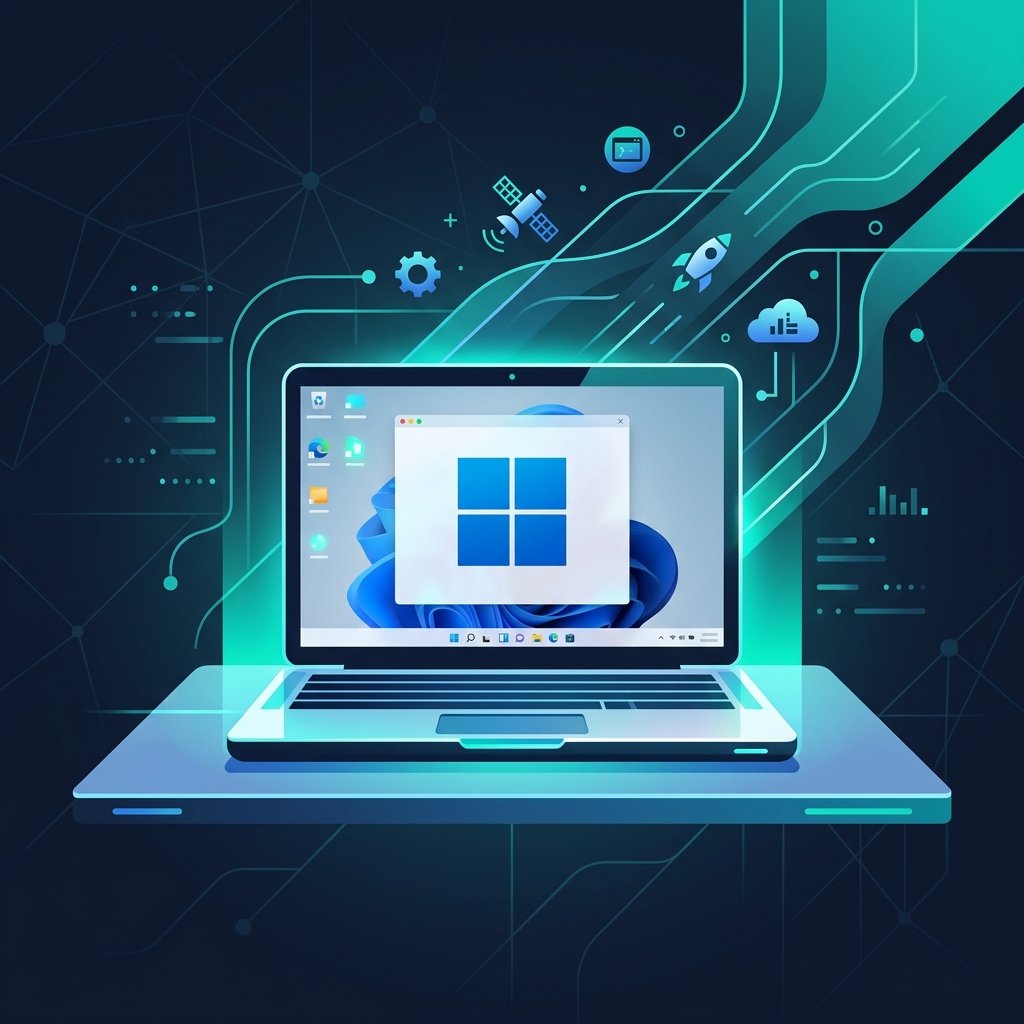
To eliminate this threat, Microsoft built Windows Sandbox directly into Windows 11 Professional and Enterprise. It provides an instantaneous, fully isolated disposable desktop environment where applications run in complete quarantine from your host computer. The moment you close the Sandbox window, all files, registry keys, and malware traces vanish permanently without a single byte altering your primary PC.
- What Windows Sandbox Is: A lightweight, disposable virtual machine built natively into Windows 11 Pro that spins up in under 15 seconds.
- 100% Ephemeral Quarantine: Software executed inside the Sandbox cannot access your host drive, personal documents, or passwords. Closing the Sandbox destroys all contents completely.
- Zero Virtual Machine Licensing: Unlike setting up VMware or VirtualBox, Windows Sandbox requires no separate Windows ISO or secondary product key—it dynamically references your host OS.
- Edition Exclusivity: Windows Sandbox requires Hyper-V hypervisor architecture, which is restricted to Windows 11 Professional and Enterprise (unavailable on Home).
How Windows Sandbox Works Under the Hood
Traditional virtual machines (like VirtualBox) require allocating static 40GB+ virtual hard disks and installing a complete separate copy of Windows. Windows Sandbox uses advanced kernel-level containerization:
- Dynamic Base Image: It references non-mutable system files directly from your host Windows 11 installation, taking up virtually zero extra disk space when idle.
- Hardware-Based Virtualization: Powered by Microsoft’s Type-1 Hyper-V hypervisor, the Sandbox kernel is physically segregated from the host OS kernel.
- Integrated Snapshot Memory: System memory inside the Sandbox is discarded instantly on shutdown, wiping any memory-resident trojans or ransomware payloads.
Upgrade to Windows 11 Pro for Sandbox
Lifetime Retail License • Instant Digital Email Delivery • Includes Windows Sandbox, BitLocker & Remote Desktop
Windows 11 Home vs. Windows 11 Pro: Virtualization Comparison
| Feature / Capability | Windows 11 Home | Windows 11 Professional |
|---|---|---|
| Windows Sandbox | ❌ Not Supported | ✅ Built-in Native Feature |
| Hyper-V Hypervisor | ❌ Disabled | ✅ Full Type-1 Hypervisor Included |
| BitLocker Drive Encryption | ❌ Restricted | ✅ Full AES-256 System Protection |
| Remote Desktop Host | ❌ Client Only | ✅ Full Host & Remote Access |
How to Enable Windows Sandbox in Windows 11 Pro (Step-by-Step)
Setting up Windows Sandbox takes less than 2 minutes:
Step 1: Verify CPU Virtualization
Press Ctrl + Shift + Esc to open Task Manager. Click the Performance tab, select CPU, and check that Virtualization: Enabled is displayed in the bottom right corner (if disabled, enable Intel VT-x or AMD SVM in your BIOS).
Step 2: Turn Windows Sandbox On
- Press the Windows Key, type
Turn Windows features on or off, and press Enter. - Scroll down and check the box next to Windows Sandbox.
- Click OK and let Windows install the required container components.
- Click Restart now when prompted.
Step 3: Launch and Test Software
Once rebooted, search for Windows Sandbox in your Start menu. A clean Windows desktop will open inside a window. You can copy any installer or file from your real desktop, paste it directly into the Sandbox window, and run it safely. When finished, simply close the window—all changes and malware are instantly erased.
For more technical setups, visit the SortedKeys Technical Documentation Hub.