Why Your Windows Keeps Deactivating and How to Stop It (2026 Fix)

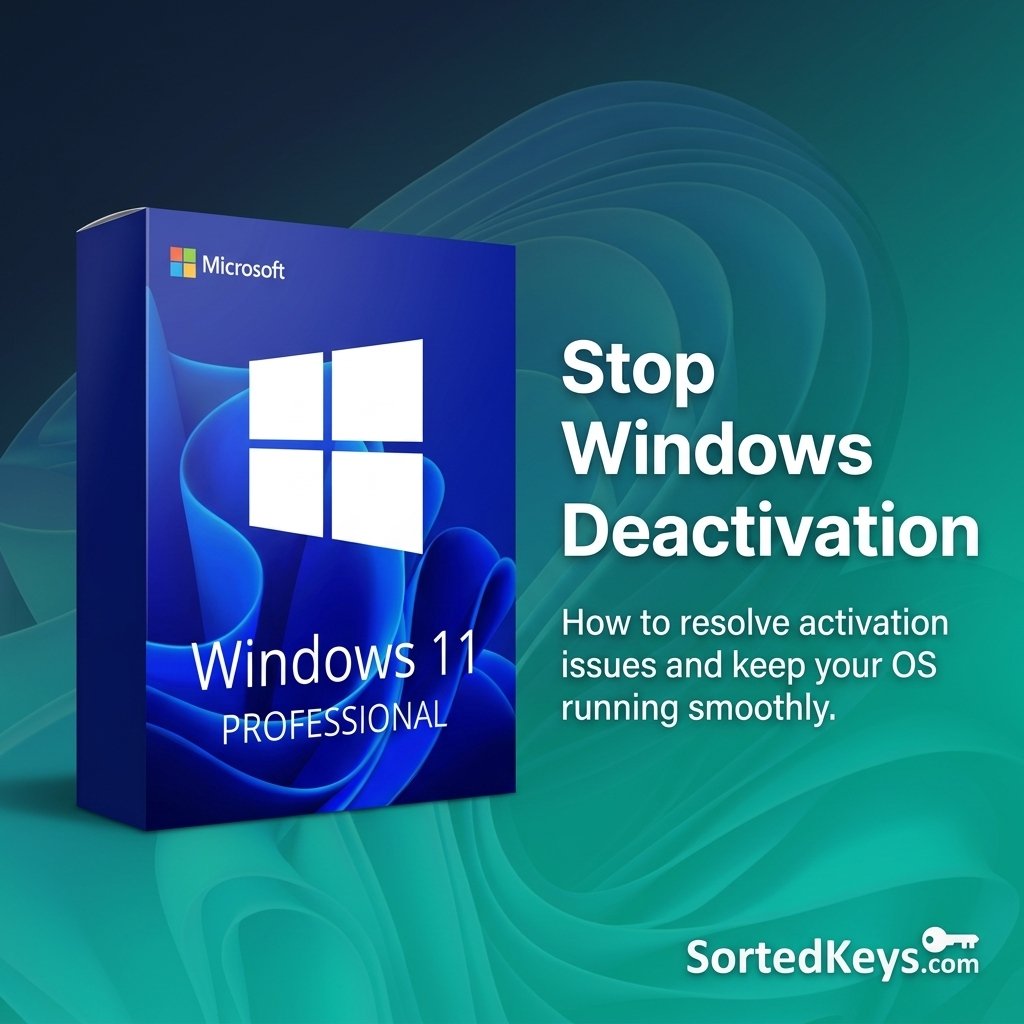
Table of Contents
Why Does My Windows Keep Deactivating?
If your Windows keeps deactivating randomly, it is almost always caused by an expiring KMS (Key Management Service) Volume License. Many pre-built PCs or third-party repair shops install unauthorized volume keys that require your PC to check in with a corporate server every 180 days. When your PC fails to connect to that server, Windows drops its activation status. To stop this permanently, you must clear the old volume license cache using Command Prompt and install a genuine Retail license.
The 3 Root Causes of Windows Deactivation
While the 180-day volume license loop is the most common culprit, your operating system might be losing its activation due to a few other technical triggers.
- Hardware Profile Changes: Your Windows Digital License is mathematically tied to your motherboard’s unique hardware ID. If you recently flashed a major BIOS update, swapped your motherboard, or replaced your primary SSD, Microsoft’s activation servers may no longer recognize the machine. You can read more about this on the official Microsoft hardware change documentation.
- The 180-Day KMS Expiration Trap: As mentioned above, unauthorized KMS activators temporarily trick Windows into thinking it belongs to a corporate network. When the 180-day timer runs out, the activation fails.
- Corrupted Licensing Tokens: Windows Updates occasionally corrupt the local
tokens.datfile, causing Windows to “forget” it is activated until the service is restarted.
How to Check Your True License Status
Before fixing the issue, you need to know exactly what kind of license is currently looping on your machine. You can check your Windows activation status in seconds:
- Click the Start Button, type CMD, right-click Command Prompt, and select Run as administrator.
- Type the command:
slmgr /xprand hit Enter. - A small dialogue box will pop up. If it says “Volume activation will expire [Date]”, you are caught in the KMS trap. If it says “The machine is permanently activated”, you have a corrupted token issue.
Need a Permanent Retail License?
Stop dealing with expiration timers. Upgrade to a genuine, lifetime Retail license bound directly to your Microsoft account.
Get Windows 11 ProStep-by-Step Permanent Fix
To permanently stop Windows from deactivating, you must completely remove the old KMS activation and flush your registry before inputting a genuine key.
- Open Command Prompt as Administrator.
- Uninstall the expiring product key: Type
slmgr /upkand hit Enter. - Clear the license from your registry: Type
slmgr /cpkyand hit Enter. - Reset your activation timers: Type
slmgr /rearmand hit Enter. - Restart your computer.
- Once restarted, go to Settings > Update & Security > Activation (or Settings > System > Activation in Windows 11) and click Change product key to enter your genuine Retail key.
Frequently Asked Questions
Will deactivation delete my files?
No. When Windows loses its activation, you will lose access to personalization settings (like changing your wallpaper) and see a watermark, but your personal files, games, and applications remain completely safe and untouched.
Can a Windows update cause deactivation?
Yes, in rare cases, a major feature update can corrupt the tokens.dat licensing file. Running the built-in Windows Activation Troubleshooter usually resolves this automatically if you hold a valid digital entitlement.