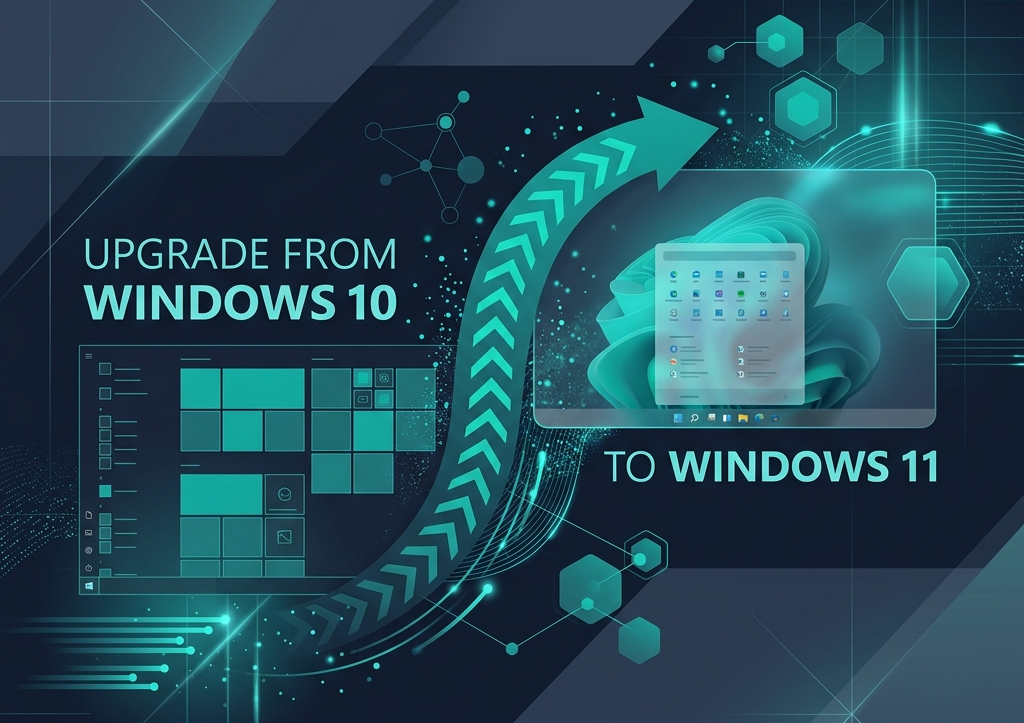
Windows 10 End of Life: What You Need to Do Now (2026 Update)

Microsoft has officially retired standard security update support for Windows 10. While millions of PCs across the world will not instantly stop working, operating an unpatched operating system exposes your personal data, banking logins, enterprise networks, and installed applications to zero-day vulnerabilities, ransomware, and compatibility lockouts.
If you are wondering what the Windows 10 End of Life (EOL) milestone means for your workstation, whether your current computer can run Windows 11, and how to execute a safe upgrade without losing personal files or software keys, this verified guide breaks down every scenario.
- Official Support Deadline: Mainstream free security patches for Windows 10 Home and Pro permanently ended on October 14, 2025.
- Your Files Stay Intact: A direct in-place upgrade preserves 100% of your documents, photos, desktop layout, and installed software without requiring a wipe.
- License Upgradability: Authentic Windows 10 retail licenses upgrade directly to Windows 11. Upgrading from Home to Pro gives immediate access to BitLocker encryption and Remote Desktop.
- Unsupported Hardware Workaround: Older PCs lacking TPM 2.0 or 8th Gen Intel/Zen 2 AMD CPUs can still run Windows 11 smoothly via automated bypass media creation.
Why You Cannot Afford to Stay on Windows 10 in 2026
Many users assume antivirus software alone is enough to keep an end-of-life operating system safe. In modern cybersecurity, that is a dangerous misconception. Operating system vulnerabilities occur below the software layer in kernel code, system drivers, and network protocols like SMB and RPC.
Key operational risks include:
- Browser Abandonment: Major web browsers (Google Chrome, Microsoft Edge, Mozilla Firefox) will progressively sunset support for Windows 10, preventing access to modern banking and web services.
- Enterprise & PCI Compliance Fails: Businesses processing credit cards, handling patient health data, or complying with GDPR / SOC2 risk hefty fines by running unpatched operating systems.
- Software Vendor Exits: Future updates of modern suites like Microsoft 365, Adobe Creative Cloud, and accounting platforms will cease installation on Windows 10 builds.
Upgrade to Windows 11 Professional
Lifetime Retail License • Instant Digital Email Delivery • Includes BitLocker, Hyper-V & Remote Desktop
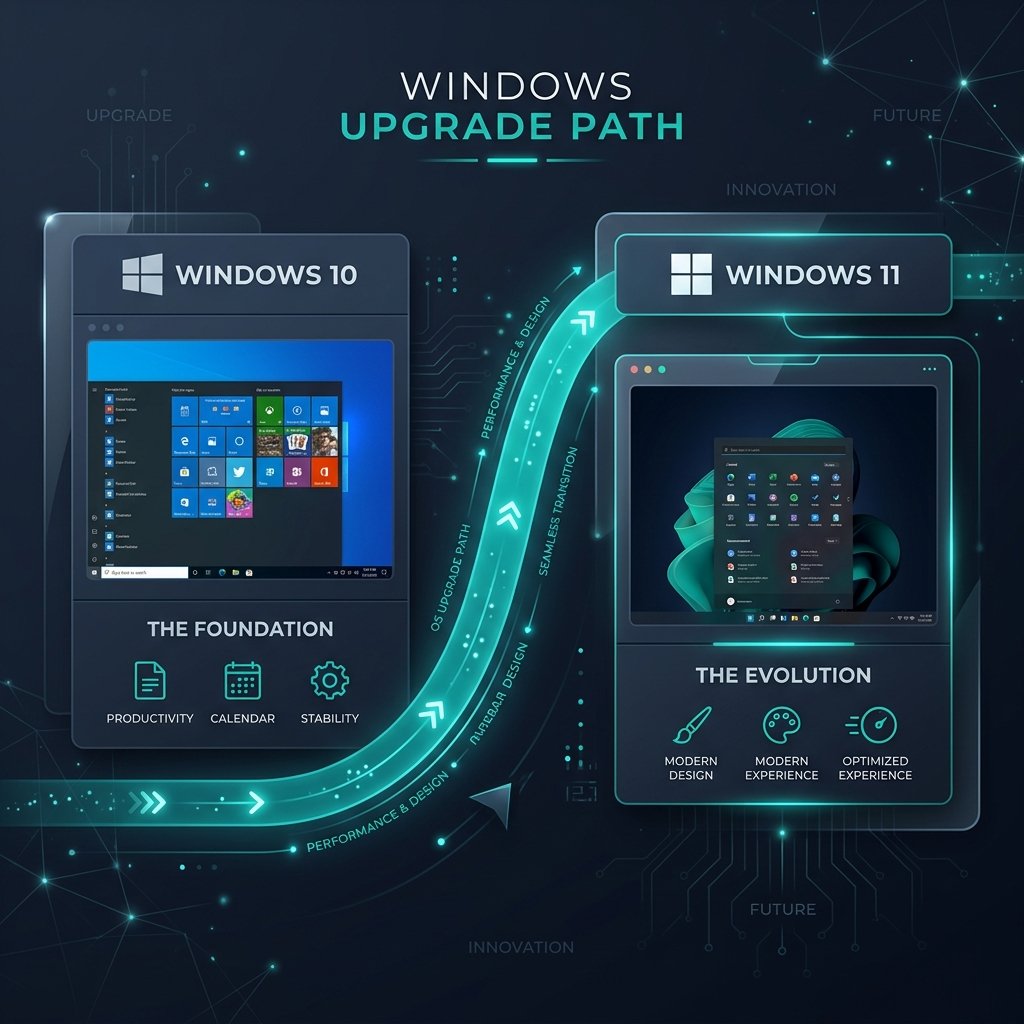
Windows 10 vs. Windows 11: Feature & Security Comparison
| Feature / Security Standard | Windows 10 | Windows 11 Professional |
|---|---|---|
| Active Security Updates | ❌ Expired (No Free Patches) | ✅ Fully Supported (24H2 & Beyond) |
| Hardware-Enforced Security | ⚠️ Optional / Legacy Mode | ✅ Mandatory TPM 2.0 & Secure Boot |
| BitLocker Device Encryption | Pro Edition Only | ✅ Native Pro Enterprise Protection |
| Windows Sandbox & Hyper-V | Pro Edition Only | ✅ Built-in Isolated Testing |
| AI & Productivity Integration | Minimal Backported Features | ✅ Native Copilot, Snap Layouts, Auto HDR |
Step-by-Step Upgrade Guide: Zero Data Loss
Follow these proven steps to migrate your system smoothly without wiping your files:
Step 1: Verify Hardware Compatibility
Download Microsoft’s official PC Health Check tool. It will assess your processor, RAM (minimum 4GB, 8GB+ recommended), storage (minimum 64GB SSD), TPM 2.0 module, and UEFI Secure Boot state.
Step 2: Backup Your Critical Files
Even though an in-place upgrade preserves user profiles, always maintain a clean backup of critical documents on OneDrive or an external SSD drive.
Step 3: Run the Windows 11 Installation Assistant
Visit the official Microsoft download portal and run the Windows 11 Installation Assistant. Accept the license terms, select “Keep personal files and apps”, and let the installer complete the update process.
If you manage multiple workstations or household systems, a Windows 11 Professional 5-PC License Pack lets you activate all PCs under a single verified purchase.
What If Your Computer Does Not Meet Hardware Requirements?
Millions of fast, capable Intel 6th/7th Gen and AMD Ryzen 1st Gen computers perform smoothly in daily tasks but lack official TPM 2.0 clearance. You have three practical paths:
- The Rufus USB Workaround: Download the official Windows 11 ISO from Microsoft, open the open-source Rufus utility, and check the option to “Remove requirement for 4GB+ RAM, Secure Boot and TPM 2.0”. You can then run
setup.exedirectly from within Windows 10 to execute an in-place upgrade. - Extended Security Updates (ESU): Microsoft offers paid annual ESU subscriptions for commercial organizations, but at escalating yearly fees that quickly exceed the cost of modern retail licenses.
- Refurbished / Hardware Upgrade: If your PC is over 8 years old, transitioning to a modern device equipped with a genuine Windows 11 Home License delivers massive gains in performance, battery life, and thermal efficiency.