Windows 11 Pro Features That Every Business Should Be Using


Table of Contents
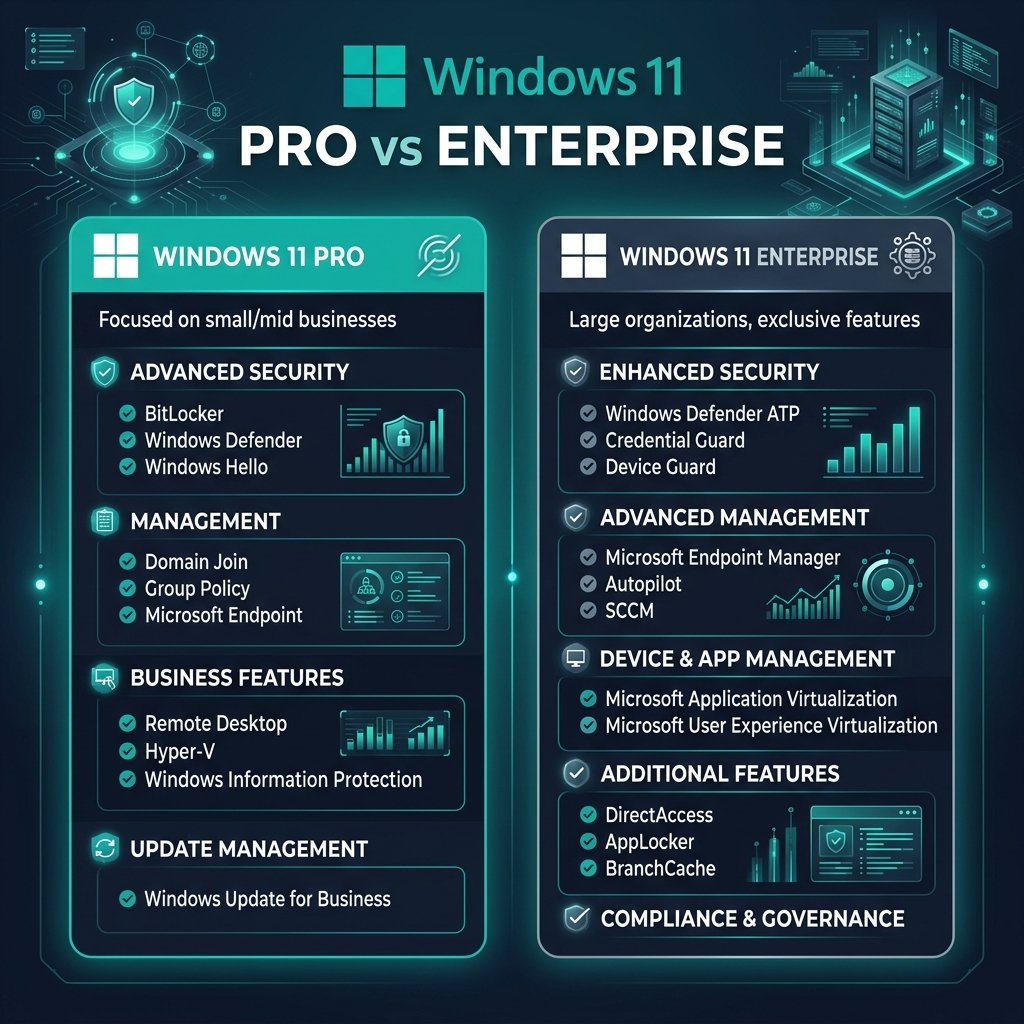
If your company’s workstations are running the Home edition of Windows, you are leaving serious productivity and security capabilities on the table. The jump from Home to Pro isn’t just about buzzwords; it unlocks a suite of enterprise-grade tools designed specifically to protect data, manage devices, and streamline remote work.
In this guide, we break down the top Windows 11 Pro business features that every small and medium-sized enterprise should be utilizing today to secure their infrastructure and empower their workforce.
1. BitLocker Device Encryption: Unbreakable Data Security
Data breaches are devastating to a small business. If an employee loses a laptop or it gets stolen, the hardware cost is negligible compared to the liability of exposed company data. BitLocker is Microsoft’s proprietary full-volume encryption feature included exclusively in Windows 11 Pro and Enterprise.
BitLocker integrates seamlessly with your device’s TPM 2.0 chip to encrypt your entire drive. If the hard drive is removed and plugged into another computer, it remains unreadable without the decryption key. For IT admins wanting to dive deeper into deployment, refer to the official Microsoft BitLocker documentation.
Ready to Secure Your Workstations?
Upgrade your fleet instantly with genuine retail licenses. No subscription required.
2. Hyper-V: Native Virtualization for Developers and Testing
Need to run legacy software that only works on older operating systems? Or perhaps your IT team needs to test a new network configuration without disrupting their main environment? Windows 11 Pro includes Hyper-V, a native hypervisor that allows you to create and run virtual machines (VMs) entirely within your current OS.
Instead of relying on third-party software like VirtualBox or VMware, Hyper-V is baked right into the kernel, offering vastly superior performance and seamless hardware passthrough for network adapters and storage.
3. Windows Sandbox: The Ultimate Safe Zone
While Hyper-V is fantastic for permanent virtual machines, sometimes you just need to open a suspicious email attachment or test a risky executable without nuking your system. Enter Windows Sandbox.
Windows Sandbox spins up a lightweight, isolated desktop environment in seconds. When you are done testing the file, you simply close the Sandbox, and everything inside it is permanently deleted. It is the ultimate tool for frontline cybersecurity defense. Learn more about its architecture on the Windows Sandbox overview page.
4. Remote Desktop Protocol (RDP) Hosting
While any Windows PC can connect to a remote desktop, only Windows 11 Pro can host a remote session. This is critical for remote workforces. With RDP, employees working from home can securely log into their powerful office workstations and access local company network resources exactly as if they were sitting at their desks.
5. Group Policy Management: Centralized IT Control
Managing three computers is easy; managing thirty is a nightmare without Group Policy. Group Policy Editor (GPO) allows your IT administrator to deploy organization-wide rules instantly. You can:
- Enforce strict password complexity requirements.
- Prevent employees from installing unapproved software.
- Block access to specific system settings (like disabling the firewall).
- Map network drives automatically upon login.
6. Azure Active Directory (Entra ID) Integration
For modern businesses leveraging the cloud, Windows 11 Pro supports seamless joining to Azure Active Directory (now Microsoft Entra ID). This means employees can use a single set of Office 365 credentials to log into their physical laptops, their email, and their cloud apps simultaneously.
If you are deploying new machines across an organization, combining this with a Windows 11 Pro & Office 2021 Bundle ensures your staff has everything they need on day one.
Frequently Asked Questions
Can I upgrade from Windows 11 Home to Pro without losing my files?
Yes. Upgrading from Home to Pro only takes a few minutes. You simply enter a valid Windows 11 Pro product key in your Activation settings, and Windows will unlock the advanced features seamlessly without deleting any of your data or installed programs.
Is BitLocker available on Windows 11 Home?
Windows 11 Home includes a basic “Device Encryption” feature, but it lacks the granular control, removable drive encryption (BitLocker To Go), and enterprise management capabilities of true BitLocker found in the Pro edition.
Do I need a new license to use Windows Sandbox?
No. Windows Sandbox is included for free within Windows 11 Pro. However, it is an optional feature, so you must enable it manually by searching for “Turn Windows features on or off” in your start menu and checking the Windows Sandbox box.