OneDrive vs Google Drive vs Dropbox: Best Cloud Storage for Windows Users (2026)

In 2026, relying solely on your computer’s local hard drive is a recipe for disaster. Whether you are backing up family photos or collaborating on business documents, cloud storage is essential. But which provider should you choose: OneDrive, Google Drive, or Dropbox?
While all three let you store files in the cloud, they integrate very differently with your Windows operating system. Let’s break down the pros, cons, and pricing of each to find out which one is the undisputed champion for Windows users.
1. Microsoft OneDrive: The Native Champion
If you are running Windows 10 or Windows 11, OneDrive is already built directly into your operating system. You don’t even need to download it; it lives right inside your File Explorer.
- Free Storage: 5 GB
- Best Feature: “Files On-Demand.” This allows you to see all your cloud files in File Explorer without them actually taking up physical space on your hard drive until you double-click to open them.
- The Ecosystem: It integrates flawlessly with Microsoft Office. If you use a genuine Microsoft Office license, OneDrive makes auto-saving Word documents and Excel spreadsheets completely seamless.
The Verdict: For pure Windows users, OneDrive is unmatched. The deep integration with File Explorer and Office makes it the most frictionless experience available.
2. Google Drive: The Collaboration King
Google Drive is arguably the most popular cloud storage service globally, largely because it ties directly into Gmail, Android phones, and Google Docs.
- Free Storage: 15 GB (Generous, but shared across Gmail and Google Photos).
- Best Feature: Web Collaboration. Nothing beats Google Drive for real-time collaboration with multiple people on a web browser.
- The Windows Experience: You have to download the “Google Drive for Desktop” app. It works well, but it feels like a third-party app bolted onto Windows, rather than a native feature.
The Verdict: If you live in the Google ecosystem (Android phone, Gmail, Google Docs) or need to collaborate with teams on web-based files, Google Drive is fantastic. But for purely backing up a Windows PC, it’s slightly less integrated than OneDrive.
3. Dropbox: The Fast & Reliable Veteran
Dropbox is the company that mainstreamed cloud storage. While Microsoft and Google try to trap you in their respective ecosystems, Dropbox remains a neutral, dedicated file-syncing powerhouse.
- Free Storage: 2 GB (Very low by modern standards).
- Best Feature: Block-Level Sync. If you change one sentence in a 100MB file, Dropbox only uploads that tiny changed piece. OneDrive and Google Drive often re-upload the entire 100MB file. This makes Dropbox incredibly fast.
- The Windows Experience: Excellent third-party app with great File Explorer integration, but the free tier is too restrictive for most users.
The Verdict: Dropbox is the fastest and most reliable for heavy-duty file syncing, particularly for creative professionals (video editors, designers) who need to move massive files quickly. However, the low free tier makes it tough to recommend for casual users.
Unlock the Full Power of OneDrive
To get the most out of OneDrive’s seamless syncing, you need the right operating system. Ensure your PC is running the latest, most secure version of Windows with a genuine license from SortedKeys.
Upgrade to Windows 11 Pro4. Feature Comparison Summary
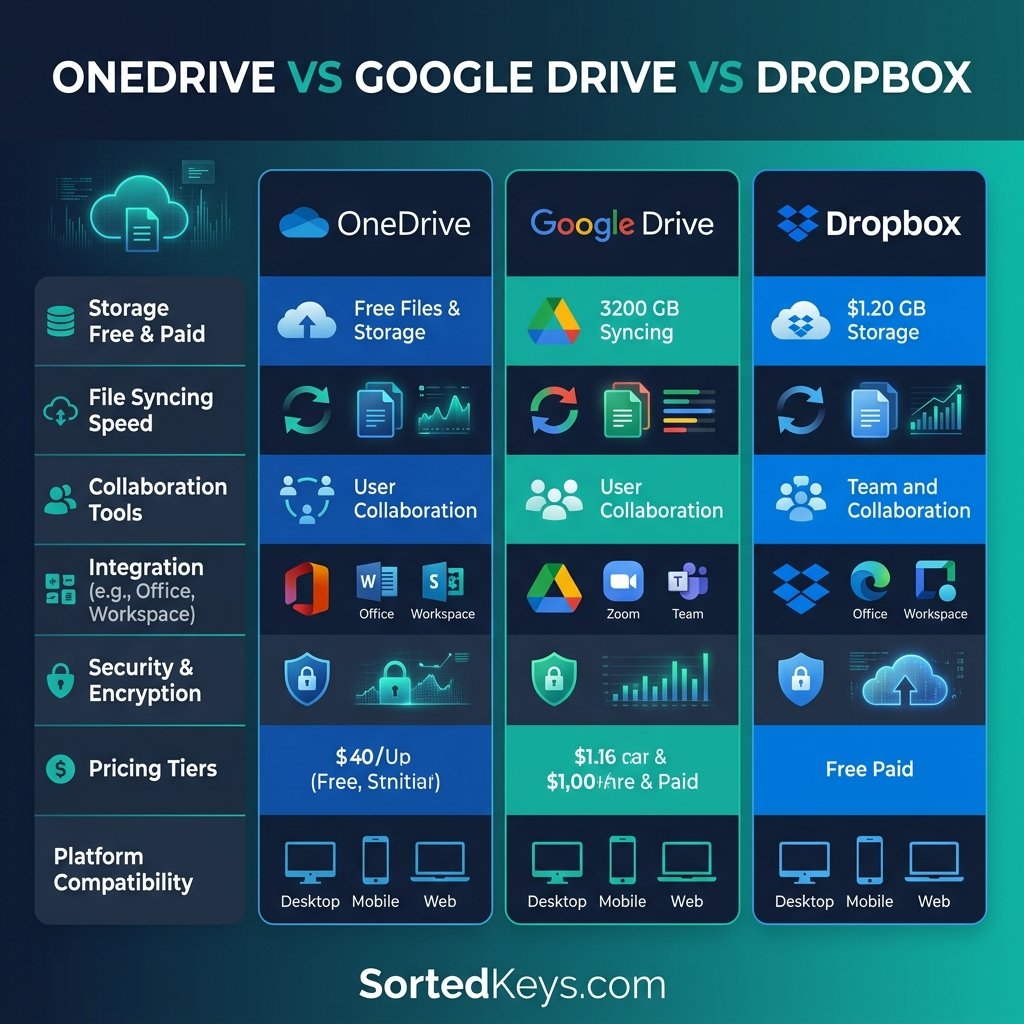
| Feature | OneDrive | Google Drive | Dropbox |
|---|---|---|---|
| Free Storage Space | 5 GB | 15 GB (Shared) | 2 GB |
| Windows OS Integration | ⭐⭐⭐⭐⭐ (Native) | ⭐⭐⭐ (Requires App) | ⭐⭐⭐⭐ (Requires App) |
| Best For | Windows/Office Users | Android/Gmail Users | Large File Syncing |
| Block-Level Syncing | ❌ No (Files re-upload) | ❌ No (Files re-upload) | ✅ Yes (Lightning fast) |
Frequently Asked Questions (FAQ)
Can I use more than one cloud storage service at the same time?
Yes! Many users install Google Drive for collaborating on web documents while using the native OneDrive app to back up their actual Windows desktop and local files. Just be careful not to set them to back up the exact same folders, as they can conflict.
Is it safe to store my files in the cloud?
Yes, all three providers use industry-standard AES 256-bit encryption. However, for highly sensitive documents, OneDrive offers a unique feature called “Personal Vault,” which requires two-factor authentication (like a fingerprint or SMS code) just to open a specific folder.
How do I stop OneDrive from syncing everything on my PC?
Right-click the blue cloud icon in your Windows taskbar, go to Settings, and select “Manage Backup.” From there, you can uncheck your Desktop, Documents, or Pictures folders to stop them from automatically syncing to the cloud.