How to Fix Windows Activation Error 0xC004F074: Complete Troubleshooting Guide

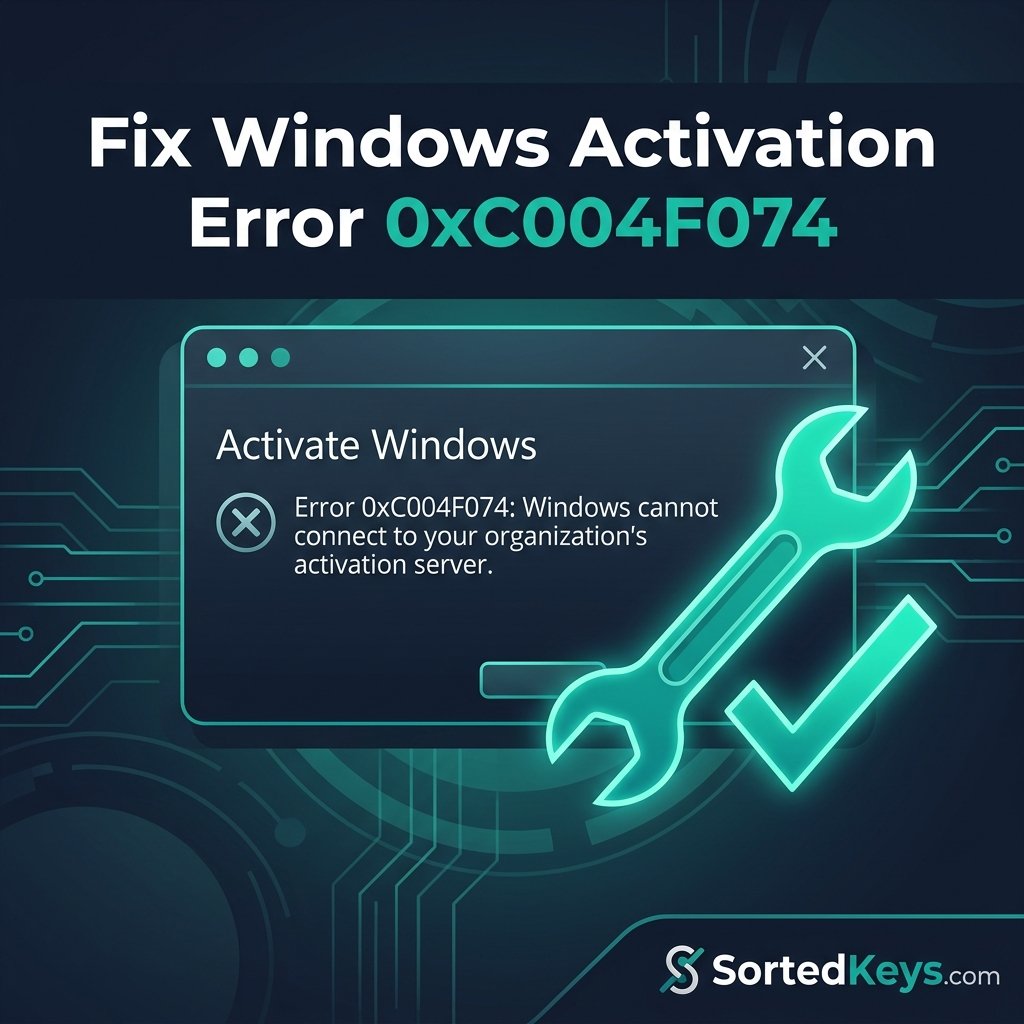
Quick Answer: Error 0xC004F074 occurs when Windows cannot contact your organization’s Key Management Service (KMS) activation server, or if your system’s time/date settings are out of sync. If you are not part of an organization, this usually means your PC was sold with an unauthorized, temporary volume license. The fastest way to fix this permanently is to purchase a genuine retail Windows 11 Pro key and activate it using the slmgr.vbs /ipk command via Command Prompt.
Table of Contents
- 1. What is Error Code 0xC004F074?
- 2. Method 1: Sync Your Date and Time Settings
- 3. Method 2: Run the Activation Troubleshooter
- 4. Method 3: Replace the Invalid KMS License with a Genuine Key
- 5. Method 4: Check Network and Firewall Settings (Enterprise Users)
- 6. Video Tutorial: Fixing Error 0xC004F074
- 7. Frequently Asked Questions (FAQ)
What is Error Code 0xC004F074?
If you’ve recently upgraded your PC or purchased a pre-built computer from a third-party seller, you might encounter a pop-up stating: “Error 0xC004F074: The Software Licensing Service reported that the computer could not be activated. No Key Management Service (KMS) could be contacted.”
This official Microsoft activation error is incredibly common and usually means one of two things:
- You bought a PC with an unauthorized license: Shady PC builders often use KMS (Key Management Service) volume licenses meant for massive corporations to activate Windows temporarily. Once the PC leaves the “corporate network,” it can no longer ping the KMS server, and Windows deactivates.
- Your system clock is wrong: If the time on your PC is drastically different from the time on the Microsoft activation servers, the digital handshake fails.
If you are simply seeing a generic watermark without a specific error code, you might want to check out our broader guide on Fixing the “Windows is Not Activated” error.
Method 1: Sync Your Date and Time Settings
Before buying a new key or digging into the command line, verify that a simple clock desynchronization isn’t causing the KMS connection failure.
- Press the Windows Key + I to open Settings.
- Navigate to Time & Language > Date & time.
- Ensure that the toggles for “Set time automatically” and “Set time zone automatically” are turned On.
- Scroll down and click the Sync now button under “Additional settings.”
- Restart your computer and try to activate Windows again.
Method 2: Run the Activation Troubleshooter
If the time is correct, let Windows attempt to diagnose the connection issue itself.
- Open Settings > System > Activation (in Windows 11) or Update & Security > Activation (in Windows 10).
- If your system is showing an error, you will see a Troubleshoot option. Click it.
- Allow the tool to run. It will attempt to re-establish a connection with the Microsoft activation servers.
Method 3: Replace the Invalid KMS License with a Genuine Key
If you are a home user (not connected to a company office network) and you see error 0xC004F074, your current product key is almost certainly an invalid or expired volume license. To permanently fix the issue, you must remove the bad key and install a genuine Retail license.
Upgrade to a Genuine Retail License
Stop dealing with KMS server errors and temporary volume licenses. Secure your PC permanently with an official retail key that binds directly to your Microsoft account.
Buy Genuine Windows 11 ProOnce you have your new genuine product key (for Windows 10 or 11), follow these steps to wipe the old KMS data and activate properly:
- Click the Start menu, type cmd, right-click Command Prompt, and select Run as administrator.
- Type
slmgr.vbs /upkand press Enter. This uninstalls the current bad key. - Type
slmgr.vbs /cpkyand press Enter. This clears the key from the registry. - Type
slmgr.vbs /ipk XXXXX-XXXXX-XXXXX-XXXXX-XXXXX(replace the X’s with your new genuine 25-character key) and press Enter. - Force the activation to ping Microsoft’s retail servers by typing
slmgr.vbs /atoand pressing Enter.
You will see a success message indicating your copy of Windows is now permanently activated.
Method 4: Check Network and Firewall Settings (Enterprise Users)
If you are actually part of a legitimate corporation and are trying to activate a work laptop, error 0xC004F074 means your PC is being blocked from reaching the IT department’s KMS host.
According to Microsoft’s KMS documentation, you must ensure that TCP port 1688 (the default port for KMS activation) is open on your network firewall. Additionally, if you are working remotely, you may need to connect to your company’s VPN before Windows can successfully ping the internal activation server.
Video Tutorial: Fixing Error 0xC004F074
If you prefer a visual walkthrough of the command prompt method to clear out the “cannot connect to your organization’s activation server” error, watch this helpful guide:
Frequently Asked Questions (FAQ)
A Key Management Service (KMS) is a server used by large businesses to activate thousands of PCs at once. If you see this error on a personal home computer, it means the PC was activated using an illicit corporate key, and Windows is now searching for a corporate server that doesn’t exist.
Yes. Genuine Windows 10 Pro product keys are fully compatible with Windows 11 Pro, provided you are installing the matching edition (Pro to Pro, or Home to Home).
No. Unless you reconnect to the original KMS server (which is impossible for most home users) or purchase and install a new retail product key, the error and the activation watermark will remain permanently.