







How to Fix Windows Activation Error 0xC004C003

In this article:
- Understanding Error 0xC004C003
- Step 1: Run the Activation Troubleshooter
- Step 2: Force Activation via Command Prompt
Understanding Error 0xC004C003
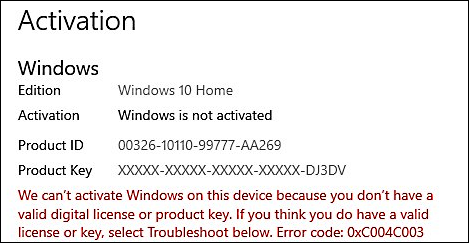
Error 0xC004C003 is one of the most common activation errors encountered when setting up a new machine or entering a new product key. It usually means the Microsoft activation servers are busy, or your machine’s hardware signature hasn’t properly registered with the network.
✅ Rest Assured: This does not mean your Sorted Keys product key is invalid. It simply means your PC is having trouble communicating with the Microsoft server.
[Insert Image: Screenshot of the Windows settings menu showing the red “Activation failed” text]
Step 1: Run the Activation Troubleshooter
Windows has a built-in tool that will manually ping the server to force the connection.
- Press the Windows Key + I on your keyboard to open the Settings app.
- Navigate to System > Activation.
- Look for the red error text. Directly beneath it, click on the Troubleshoot button.
- Allow the system to detect issues. In many cases, this diagnostic tool will resolve the server lag and activate your system immediately.
[Insert Image: Screenshot pointing to the “Troubleshoot” button in the Activation menu]
Step 2: Force Activation via Command Prompt
If the troubleshooter fails, we can manually reset the Windows licensing manager using a quick command.
- Click your Start Menu and type cmd.
- Right-click on Command Prompt and select Run as Administrator.
- Type the following command exactly and press Enter:
slmgr.vbs /rearm - Restart your computer.
- Once rebooted, open Command Prompt as Administrator again.
- Type this command and press Enter:
slmgr.vbs /ato
📞 Need More Help? If the error persists after 24 hours of trying these steps, the Microsoft servers may be undergoing maintenance. Contact the Sorted Keys technical support team at solutions@sortedkeys.com with your order number, and we will assist you.

Related Posts

How to Fix Windows 10 Upgrade Error 0x803fa067 (Complete Step-by-Step Guide)
🛡️ Verified Troubleshooting Guide: Tested on Windows 10 Version 22H2 • 100% Genuine Retail Channel • Microsoft ...
Why Your Windows Keeps Deactivating and How to Stop It (2026 Fix)
Table of Contents
Direct Answer: Why is this happening?
The 3 Root Causes of Windows Deactivation...

Troubleshooting Windows Activation When Your Product Key Doesn’t Match Your Edition
One of the most common hurdles when activating Windows is discovering that your purchased license doesn't align with the versi...

How to Fix Office 365 “We Couldn’t Verify Your Subscription” Error
There is nothing more frustrating than opening Word or Excel to finish an important project, only to be met with a bright yell...

How to Fix Error 0x803F7001: Windows Couldn’t Find a Valid License
Table of Contents
What Causes Error 0x803F7001?
Fix 1: Run the Activation Troubleshooter
Fix 2...

Windows 11 Won’t Activate After Update: How to Fix It
Table of Contents
Why Did a Windows Update Break My Activation?
Fix 1: Run the Windows Activation Tr...
How to Buy and Set Up a Windows 11 License for Your Custom-Built PC
Building your own custom PC is an incredibly rewarding experience, but the job isn't finished once you've screwed in the las...
Buying a Refurbished PC? Here’s How to Check If the Windows License Is Genuine
If you just bought a refurbished PC, the fastest way to check if your Windows license is genuine is to open Settings > Sy...
Where to Buy Genuine Windows 11 Product Keys: A Safe Buyer’s Guide
Table of Contents
1. Why You Need a Genuine Key
2. OEM vs. Retail: What's the Difference?
...
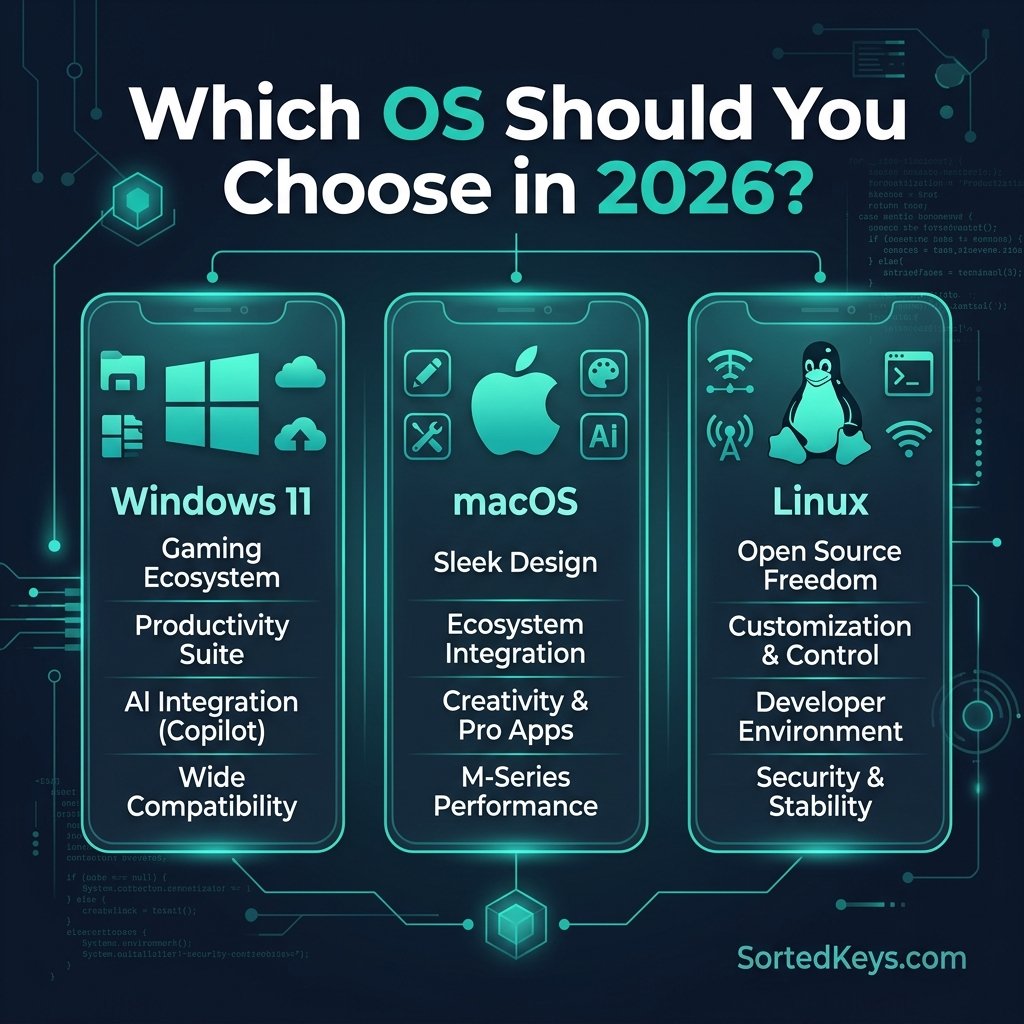
Windows 11 vs macOS vs Linux: Choosing the Right OS in 2026
The short answer: If you are a PC gamer, a corporate professional, or someone who relies on broad software compatibi...
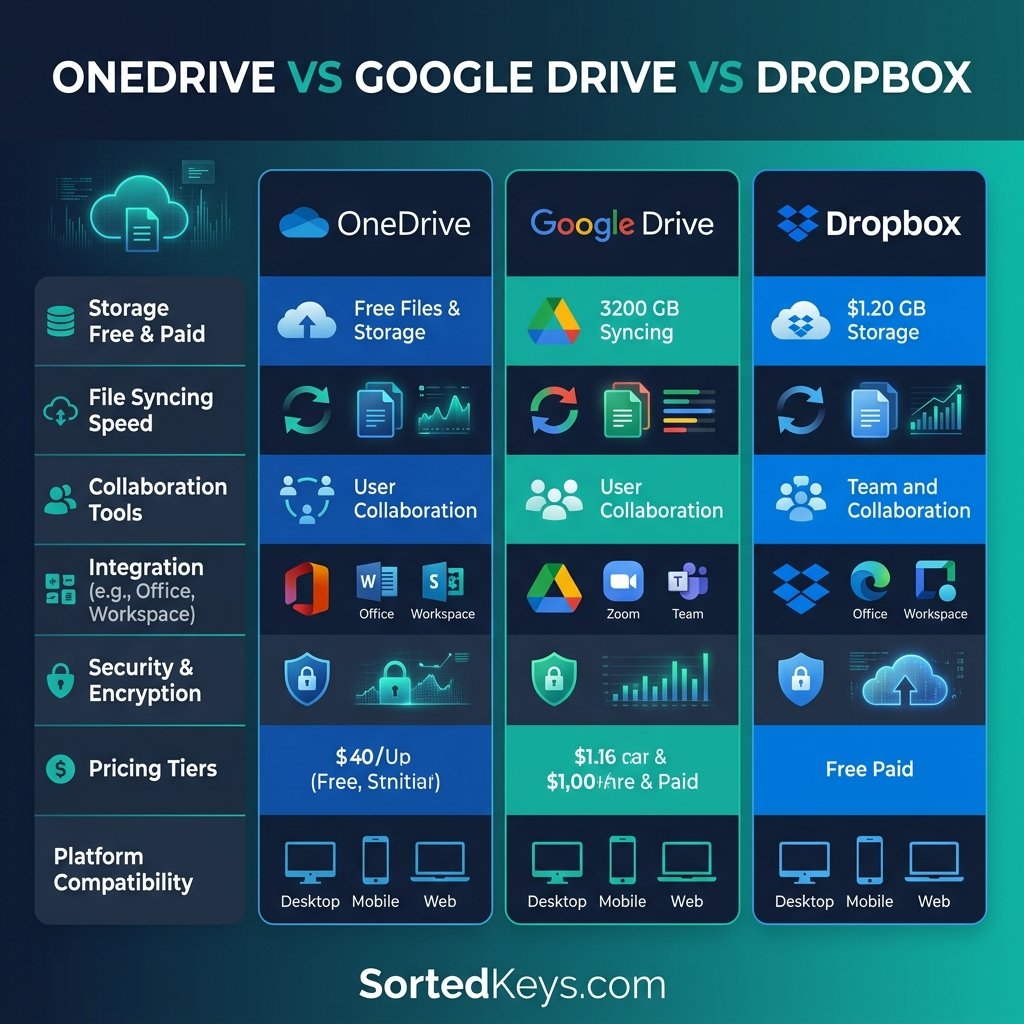
OneDrive vs Google Drive vs Dropbox: Best Cloud Storage for Windows Users (2026)
In 2026, relying solely on your computer's local hard drive is a recipe for disaster. Whether you are backing up family phot...