




How to Upgrade from Windows 10 to Windows 11 for Free

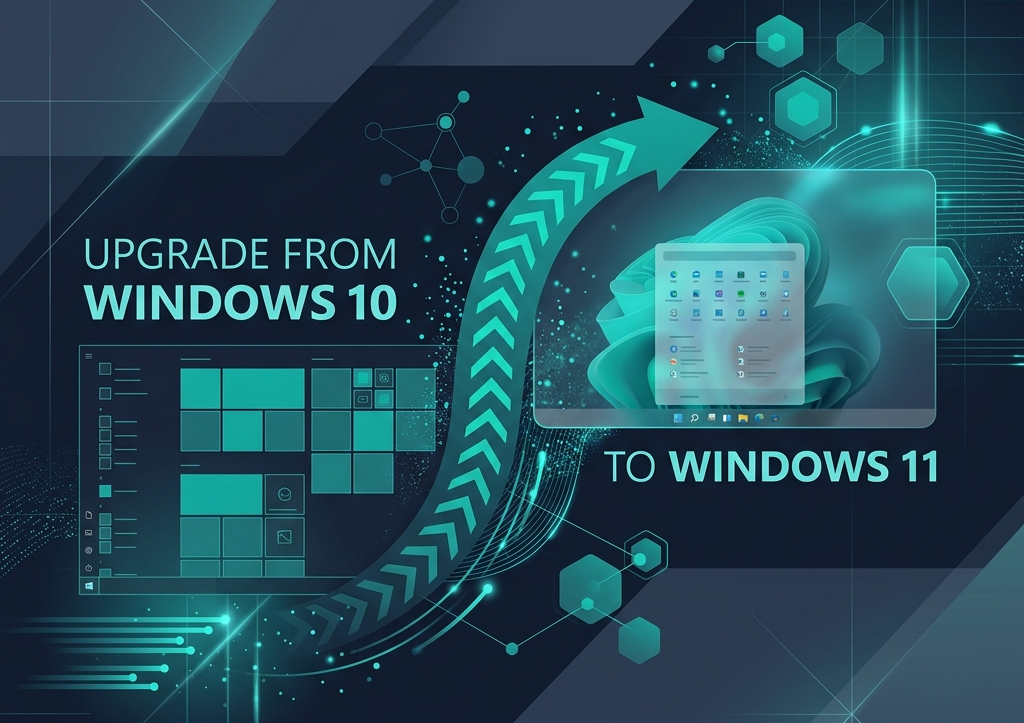
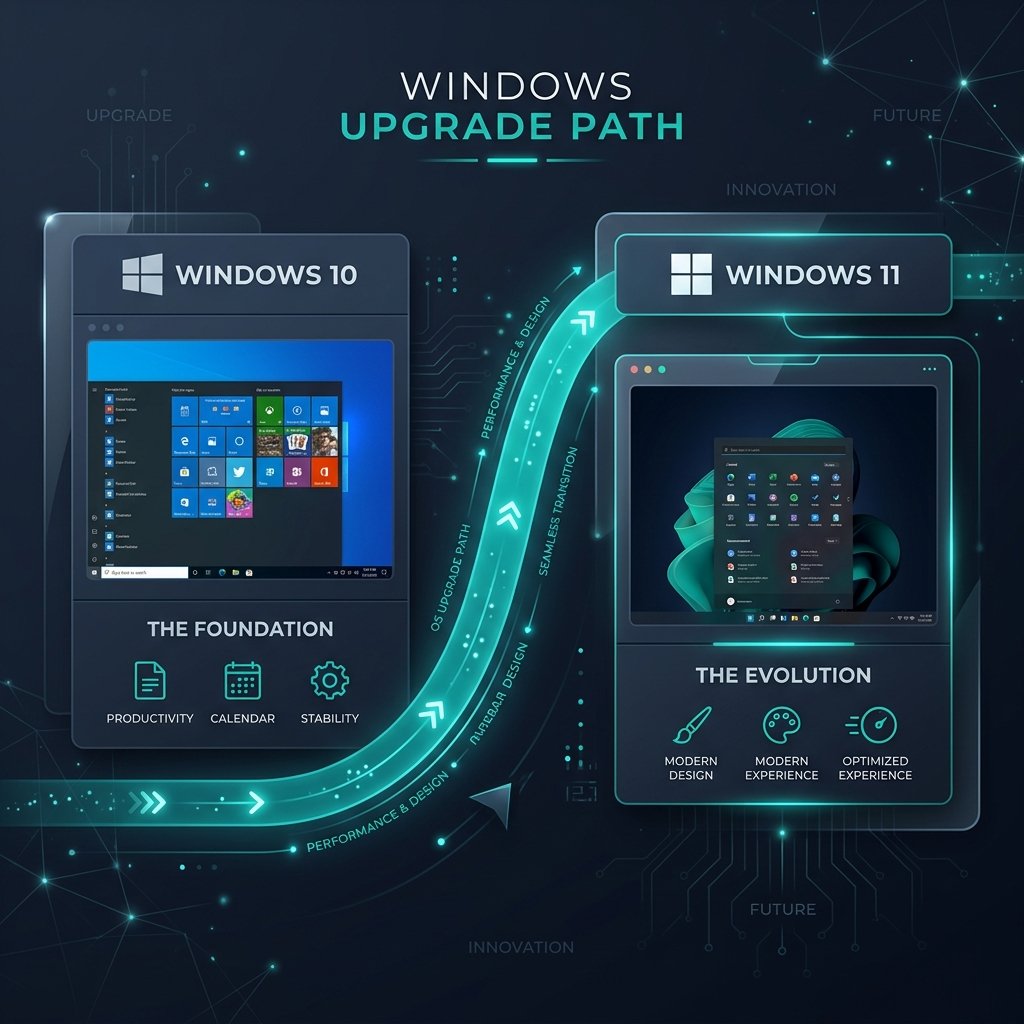
Yes, you can still upgrade from Windows 10 to Windows 11 for free in 2026. As long as your PC meets Microsoft’s minimum hardware requirements (including TPM 2.0 and Secure Boot) and you are currently running a genuinely activated copy of Windows 10, the upgrade path remains completely free. You can initiate the upgrade directly through Windows Update or by using the official Microsoft Windows 11 Installation Assistant.
System Requirements: Can Your PC Run Windows 11?
Before you begin the upgrade process, you must ensure your computer meets the strict hardware requirements. Microsoft enforces these rules for security and performance reasons.
| Component | Minimum Requirement |
|---|---|
| Processor | 1 GHz or faster with 2+ cores (64-bit) |
| RAM | 4 GB or more |
| Storage | 64 GB or larger storage device |
| System Firmware | UEFI, Secure Boot capable |
| TPM | Trusted Platform Module (TPM) version 2.0 |
Method 1: The Easiest Way (Windows Update)
The safest and easiest way to upgrade is through your built-in Windows settings. This method ensures your system is 100% compatible before downloading the files.
- Click the Start button and open Settings.
- Navigate to Update & Security > Windows Update.
- Click Check for updates.
- If your PC is compatible, you will see a banner that says “Upgrade to Windows 11 is ready.” Click Download and install.
Need to Upgrade Your License Edition?
If you’re currently running Windows 10 Home but want the advanced security and BitLocker encryption features of Windows 11 Pro, you’ll need a Pro license key after you finish the free upgrade.
Get a Windows 11 Pro Key TodayMethod 2: Using the Installation Assistant
If Windows Update isn’t showing the prompt yet, but you know your PC meets the requirements, you can force the upgrade using Microsoft’s official tool.
- Go to the official Microsoft Software Download page.
- Under “Windows 11 Installation Assistant”, click Download Now.
- Run the tool as an administrator and click Accept and Install.
- Your PC will restart multiple times during the process. Do not turn it off!
Frequently Asked Questions (FAQ)
Will I lose my files during the free upgrade?
No. An in-place upgrade keeps all your files, settings, and installed applications exactly where they are. However, backing up your important data to an external drive beforehand is always recommended.
How long does the free upgrade offer last?
Microsoft has not announced an official end date for the free upgrade path. However, with Windows 10 rapidly approaching its End of Life (EOL) support date, upgrading sooner rather than later is highly advised.
Can I go back to Windows 10 if I don’t like it?
Yes, but you only have a 10-day window after upgrading. Go to Settings > System > Recovery, and click “Go back” to easily revert your machine back to Windows 10 without losing data.