








How to Bind Office 2021 Home & Business to Your Mac

In this article:
- Understanding Mac Account Binding
- Step 1: Bind the Key to Your Account
- Step 2: Download and Authenticate
Understanding Mac Account Binding
Unlike traditional PC licenses, Office 2021 Home & Business for macOS utilizes a direct account-binding system. Your product key acts as a digital voucher that permanently attaches the software to your Microsoft account.
Step 1: Bind the Key to Your Account
- Open Safari or your preferred browser and navigate to setup.office.com.
- Log in with your existing Microsoft Account (or create a new one).
- Enter your 25-character product key purchased from Sorted Keys.
- Select your region and language, then click Next.
⚠️ Critical Note: Ensure you are logged into the exact Microsoft Account you want the software permanently attached to. This action cannot be undone or transferred.
Step 2: Download and Authenticate
- Once the site confirms the binding, click the Download button to retrieve the
.pkginstaller file for Mac. - Open the downloaded
.pkgfile and follow the standard Apple installation wizard. - When the installation finishes, open Microsoft Word. You will be prompted to sign in.
- Sign in using the exact same Microsoft Account you used in Step 1.
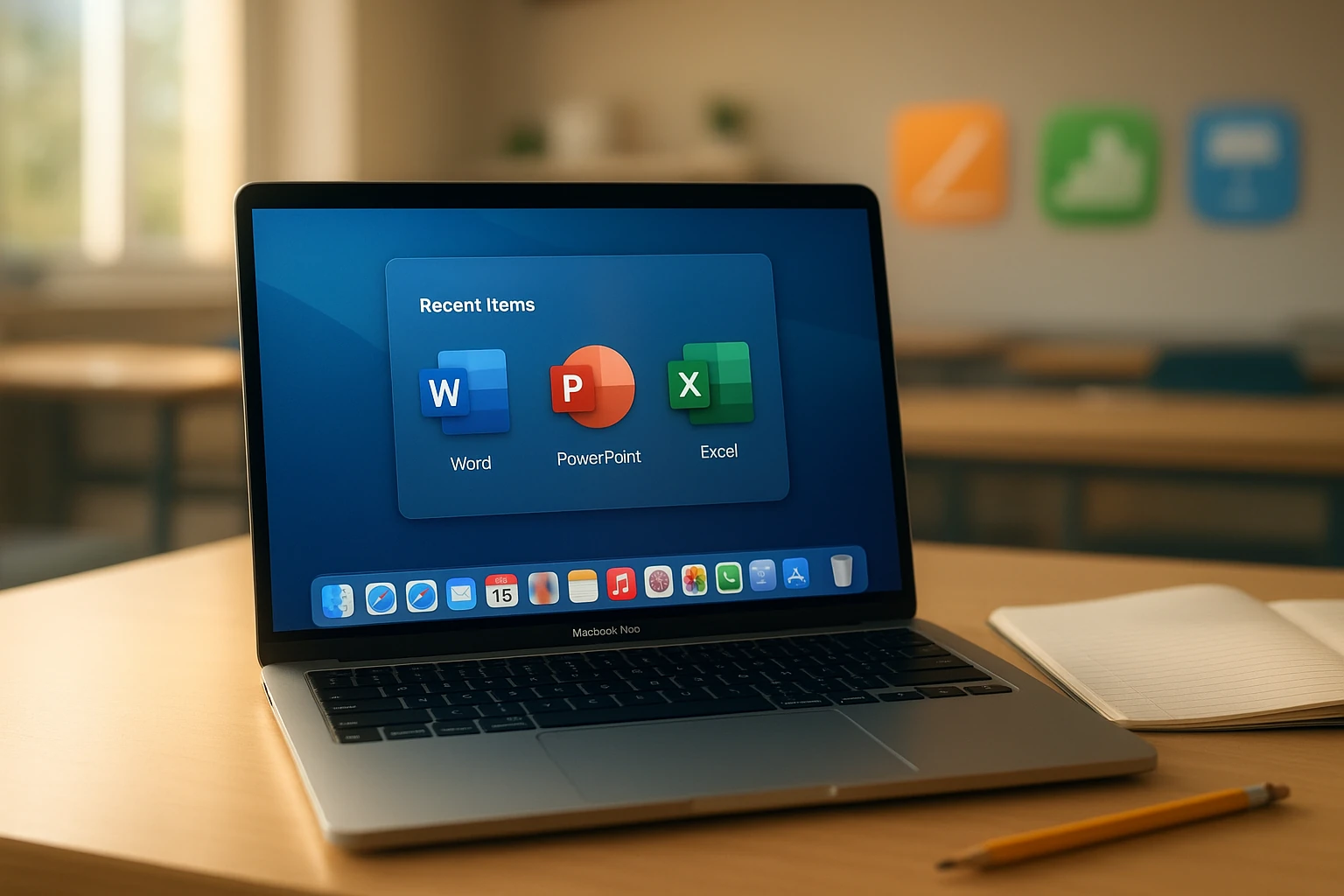
[Insert Image: A sleek Apple MacBook showing the Word, Excel, and PowerPoint icons on the screen]
Related Posts

How to Fix Microsoft 365 “Unlicensed Product” Error on Mac (Keychain & License Tool)
🛡️
Verified macOS Troubleshooting Guide: Validated on macOS Sequoia (15.x), Sonoma & Ventura • Apple Sili...
How to Install Microsoft 365 on 5 Devices (Windows, Mac, iOS & Android): Complete Setup Guide
🛡️
Verified Deployment Guide: Validated on Windows 11 24H2 & macOS Sequoia • Official Microsoft Partner I...

How to Buy and Set Up a Windows 11 License for Your Custom-Built PC
Building your own custom PC is an incredibly rewarding experience, but the job isn't finished once you've screwed in the las...
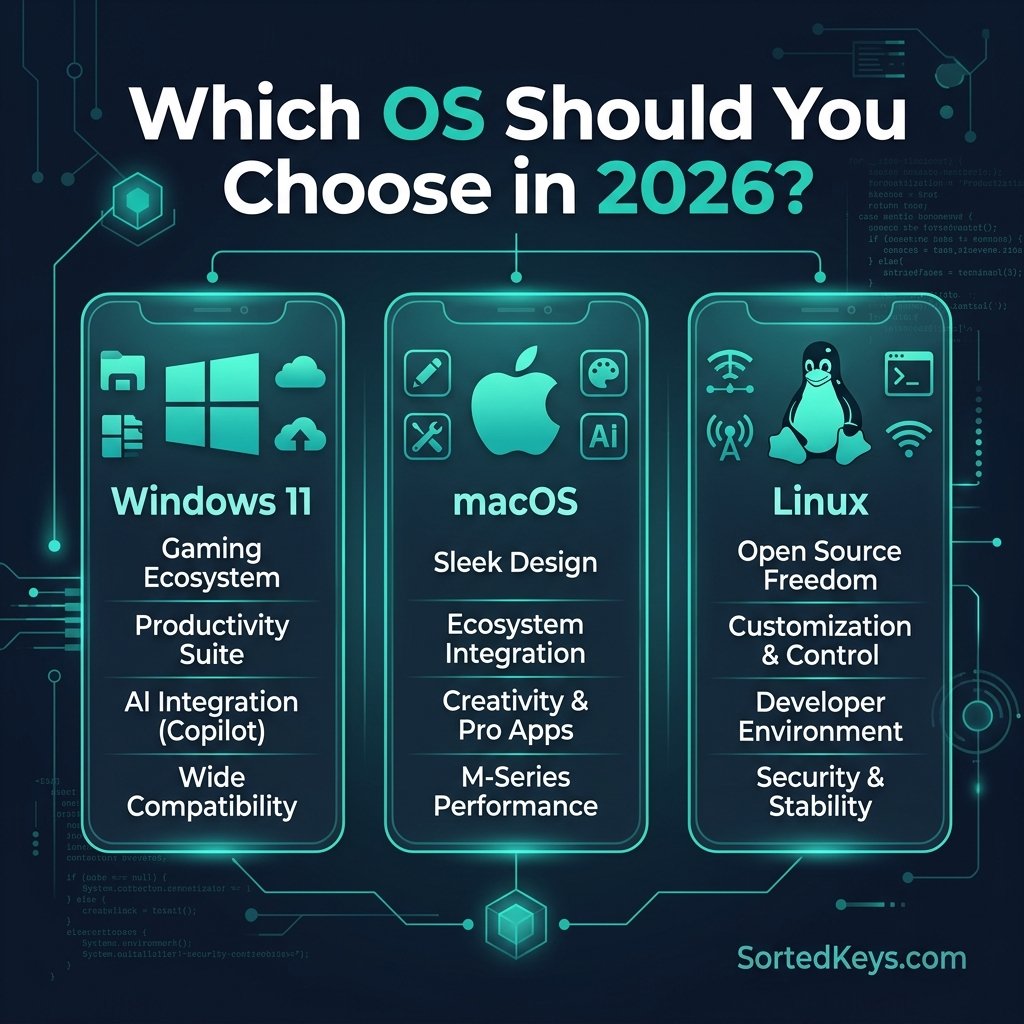
Windows 11 vs macOS vs Linux: Choosing the Right OS in 2026
The short answer: If you are a PC gamer, a corporate professional, or someone who relies on broad software compatibi...
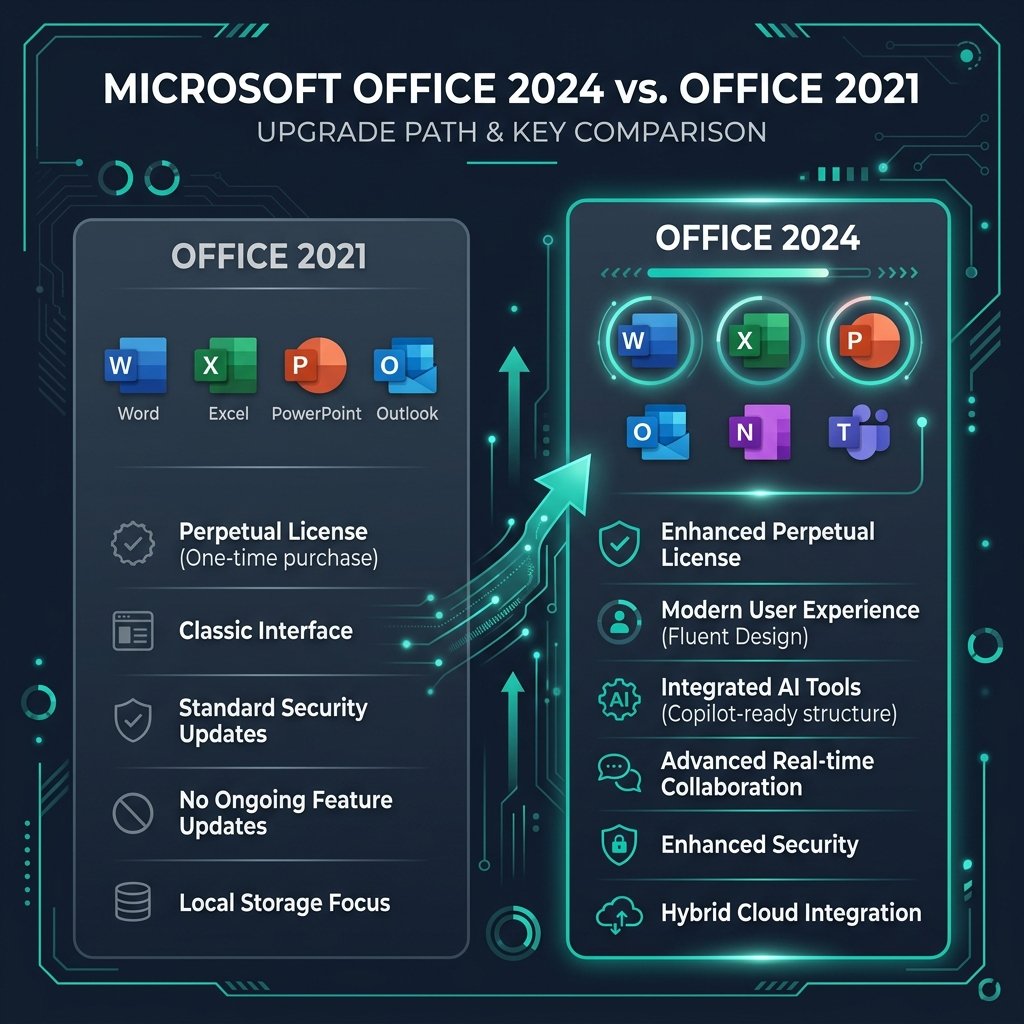
Office 2024 vs Office 2021: Is It Worth Upgrading?
If you are currently using Office 2021, upgrading to Microsoft Office 2024 is only worth it if you specifically need the new ...
How to Activate Microsoft Office with a Product Key
To activate Microsoft Office with a product key, go to the official Microsoft portal at setup.office.com. Sign in with your Micr...

How to Fix the “Telephone Activation” Prompt in Office
In this article:Why Telephone Activation Happens
Step 1: Launch the Activation Wizard
Step 2: Obtain Your Confirmation ID...
How to Install and Activate Office 2021 Professional Plus
In this article:Pre-Installation Checklist
Step 1: Download & Mount the Installer
Step 2: Installation and Activation...

How to Create a Windows 11 Bootable USB Drive
In this article:Step 1: Prepare Your USB Drive
Step 2: Download the Media Creation Tool
Step 3: Create the Bootable Media...