What’s New in Windows 11 24H2: Features, Improvements, and How to Update

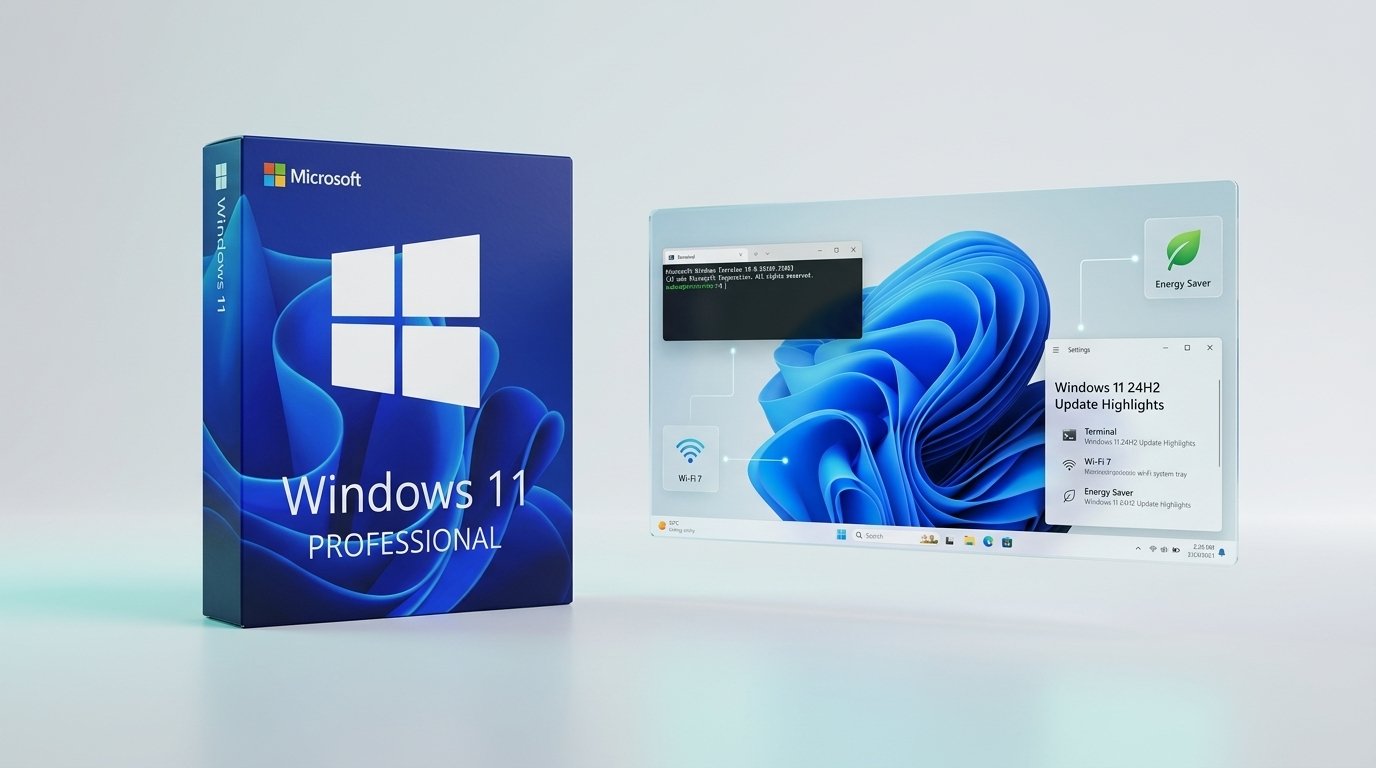
The annual release of Windows 11 Version 24H2 represents the most substantial architectural overhaul Microsoft has delivered since the initial launch of the operating system. Built on the brand-new Germanium platform codebase, 24H2 is not merely a visual cosmetic refresh—it reorganizes kernel components, integrates native developer command-line tools, revamps battery and power management, introduces cutting-edge Wi-Fi 7 networking, and establishes the foundational system layer for local AI acceleration.
Whether you manage workstation fleets for a small business or you are a power user seeking peak PC performance, understanding the innovations in 24H2—and verifying hardware prerequisites—is crucial for a smooth deployment. In this comprehensive technical guide, we break down every core feature, compare edition advantages, and detail step-by-step upgrade procedures.
1. Major New Features in Windows 11 24H2
A. Native Sudo for Windows
For decades, Windows developers and system administrators had to open a separate elevated command prompt or PowerShell window whenever they needed to run an administrative command. With 24H2, Microsoft has integrated a native, open-source Sudo for Windows implementation.
Available under Settings > System > For developers > Enable sudo, administrators can configure sudo to run elevated tasks directly within their existing terminal session across three distinct execution modes:
- In a new window (
forceNewWindow): Spawns elevated commands into a secondary protected window (safest default mode). - Input closed (
disableInput): Runs elevated processes in the current console but closes standard input (stdin) to prevent unprivileged code injection. - Inline (
normal): Mimics classic Unix sudo behavior with bidirectional console piping for interactive prompts.
B. Wi-Fi 7 (802.11be) Wireless Support
Windows 11 24H2 brings day-one native networking stack support for next-generation Wi-Fi 7 routers and network interface cards (NICs). Leveraging multi-gigabit speeds, 320 MHz channel bandwidths, and Multi-Link Operation (MLO), Wi-Fi 7 allows compatible workstations to send and receive data across multiple frequency bands (2.4 GHz, 5 GHz, and 6 GHz) concurrently, cutting network latency by up to 80% compared to Wi-Fi 6E.
C. Unified Energy Saver Architecture
Previously, Windows maintained distinct “Battery Saver” toggles for laptops and complex desktop power schemes. Windows 11 24H2 replaces Battery Saver with a unified Energy Saver mode that operates across both portable laptops and permanently plugged-in desktop PCs. When activated, Energy Saver throttles background resource consumers, dims display telemetry, and optimizes CPU scheduling to slash energy consumption without causing UI stuttering.
D. Advanced Audio & Voice Clarity
Powered by low-latency deep neural network algorithms, Voice Clarity is now enabled across all x64 and ARM64 PC architectures without requiring a dedicated Neural Processing Unit (NPU). It cancels background acoustic echo, suppresses fan noise, and isolates vocal audio across supported calling apps like Microsoft Teams, Zoom, and VoIP softphones.
E. File Explorer & Native Archive Compression
File Explorer expands its built-in archival engine. In addition to standard .zip archives, 24H2 natively creates and extracts .7z and .tar archives directly from the context menu, complete with customizable compression algorithms (Gzip, Bzip2, XZ) and compression level controls without requiring third-party extraction utilities.
2. Hardware & Architecture Prerequisites for 24H2
Unlike minor cumulative updates, 24H2 introduces strict low-level instruction set requirements at the CPU kernel bootloader level. Understanding these prerequisites prevents upgrade failures:
| Prerequisite | Minimum Specification | Why It Matters in 24H2 |
|---|---|---|
| Instruction Set | POPCNT & SSE4.2 | Non-negotiable kernel requirement. Legacy CPUs lacking POPCNT cannot boot 24H2 even if registry bypasses are used. |
| Security Module | TPM 2.0 (Discrete or Firmware) | Required for Device Guard, Credential Guard, and BitLocker drive encryption keys. |
| Firmware & Boot | UEFI with Secure Boot | Enforces kernel signature integrity and bootloader protection against rootkits. |
| RAM & Storage | 4 GB RAM / 64 GB NVMe or SSD | Fast solid-state storage is mandatory for seamless dynamic page filing and quick system updates. |
| Display | 720p / 9-inch+ / 8-bit color | Ensures crisp rendering of modernized Fluent UI components and new HDR wallpapers. |
POPCNT instruction, attempting to force 24H2 will result in a hard bootloop crash (system_thread_exception_not_handled). If you are preparing legacy systems for retirement, review our Windows 10 End of Life Strategic Guide.3. Windows 11 Home vs. Windows 11 Pro in Version 24H2
While both Home and Pro editions receive the visual and networking updates in 24H2, professional and commercial workflows require the advanced toolset exclusive to Windows 11 Pro:
| Feature / Security Tool | Windows 11 Home (24H2) | Windows 11 Professional (24H2) |
|---|---|---|
| BitLocker Drive Encryption | Basic Device Encryption only | Full AES-256 BitLocker with Removable Drive Protection |
| Windows Sandbox | ❌ Not Available | ✅ Fully Enabled (Isolated disposable container) |
| Hyper-V Virtualization | ❌ Not Available | ✅ Full Type-1 Hypervisor support |
| Remote Desktop (RDP) | Client connection only | Full RDP Host Server & Incoming Sessions |
| Group Policy & Domain Join | ❌ Not Available | ✅ Active Directory & Microsoft Entra ID Join |
| Native Sudo & Terminal Controls | Standard developer toggle | Full enterprise group policy lockdown for Sudo execution |
Upgrade to Windows 11 Professional (Retail License)
Official Microsoft PartnerUnlock the full power of Windows 11 24H2 with BitLocker, Windows Sandbox, Hyper-V, and Remote Desktop. 100% genuine retail activation with lifetime validity and instant digital key delivery.
Buy Windows 11 Pro Key — Instant Delivery ($35.99)4. Step-by-Step: How to Update to Windows 11 24H2
Press Win + R, type msinfo32, and press Enter. Verify that BIOS Mode is set to UEFI and Secure Boot State is On. Next, run tpm.msc to ensure TPM 2.0 is present and ready for use.
Navigate to Settings > Windows Update. Enable the toggle for “Get the latest updates as soon as they’re available” and click Check for updates. Once “Windows 11, version 24H2 is ready” appears, click Download and install.
If Windows Update has not yet pushed the rollout to your device, download the official Windows 11 Installation Assistant directly from Microsoft’s download portal. Run the utility, accept the software license terms, and allow it to download and apply the 24H2 packages with all personal files and installed applications preserved.
Following reboot, verify activation integrity by opening an elevated Command Prompt and running slmgr /xpr. A confirmation modal will display “The machine is permanently activated”. For detailed validation steps, see our guide on How to Tell If Your Windows Product Key Is Genuine.