







How to Install and Activate Office 2021 Professional Plus

In this article:
Pre-Installation Checklist
Office 2021 Professional Plus is an enterprise-grade suite. For a smooth installation, you must ensure your PC is prepared.
⚠️ Mandatory Step: Go to Control Panel > Programs and Features and completely uninstall any previous versions of Microsoft Office or Microsoft 365 trial versions. Restart your PC after uninstalling before proceeding to Step 1.
Step 1: Download & Mount the Installer
- Download the official Office 2021 Pro Plus setup file using the secure download link provided in your Sorted Keys delivery email.
- Once downloaded, double-click the
.imgor.isofile to mount it to your system as a virtual DVD drive. - Open the newly mounted drive in File Explorer and double-click the
Setup.exefile.
[Insert Image: The official Microsoft Office 2021 box art or logo]
Step 2: Installation and Activation
- The Microsoft Office installer will launch. Wait for the installation progress bar to finish.
- Once installed, open any Office application from your Start Menu (like Microsoft Word).
- A prompt will appear asking you to activate the software. Enter the 25-character product key provided by Sorted Keys.
- Select “Activate software over the internet” and click Next to finalize your deployment.
✅ Deployment Complete: Your Office 2021 Professional Plus suite is now permanently activated on your machine.

Related Posts

Essential Software Every Small Business Needs in 2026
Table of Contents
Direct Answer: What Do You Need?
1. The Operating System: Windows 11 Pro
...

How to Buy and Set Up a Windows 11 License for Your Custom-Built PC
Building your own custom PC is an incredibly rewarding experience, but the job isn't finished once you've screwed in the las...
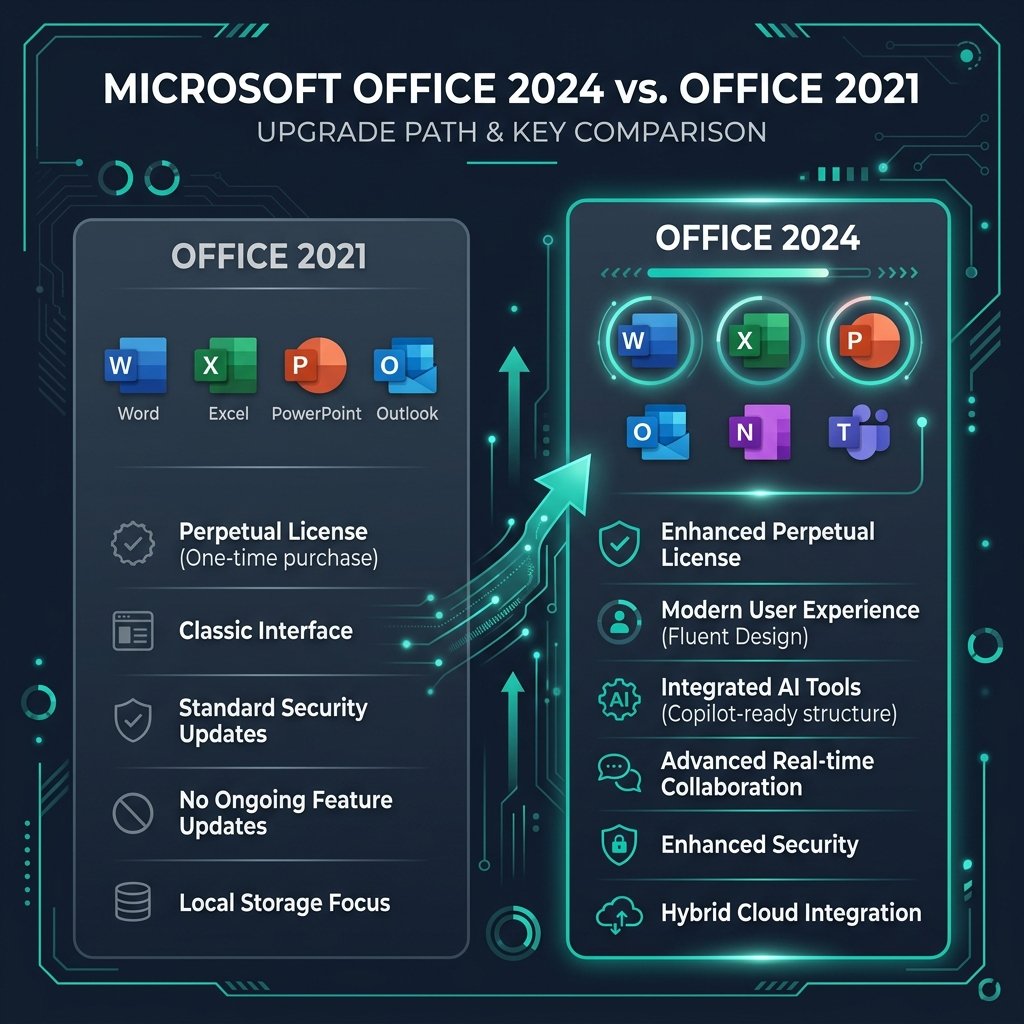
Office 2024 vs Office 2021: Is It Worth Upgrading?
If you are currently using Office 2021, upgrading to Microsoft Office 2024 is only worth it if you specifically need the new ...
How to Activate Microsoft Office with a Product Key
To activate Microsoft Office with a product key, go to the official Microsoft portal at setup.office.com. Sign in with your Micr...
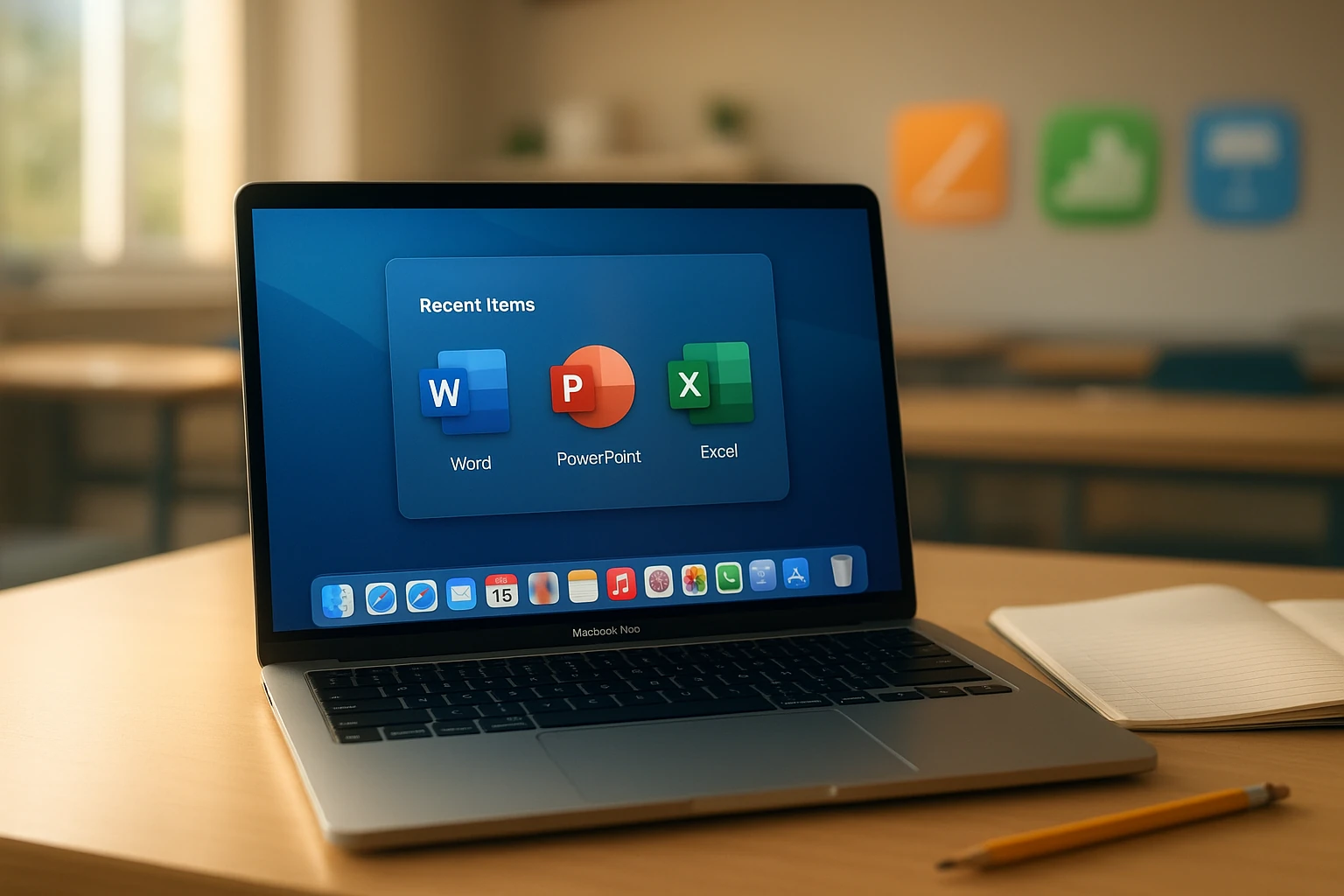
How to Bind Office 2021 Home & Business to Your Mac
In this article:Understanding Mac Account Binding
Step 1: Bind the Key to Your Account
Step 2: Download and Authenticate
...

How to Fix the “Telephone Activation” Prompt in Office
In this article:Why Telephone Activation Happens
Step 1: Launch the Activation Wizard
Step 2: Obtain Your Confirmation ID...
How to Create a Windows 11 Bootable USB Drive
In this article:Step 1: Prepare Your USB Drive
Step 2: Download the Media Creation Tool
Step 3: Create the Bootable Media...