







How to Fix the “Telephone Activation” Prompt in Office

In this article:
- Why Telephone Activation Happens
- Step 1: Launch the Activation Wizard
- Step 2: Obtain Your Confirmation ID
Why Telephone Activation Happens
Occasionally, when activating a retail Microsoft Office key, the standard “internet activation” server may be congested or blocked by an enterprise firewall, prompting you to activate via telephone.
ℹ️ Don’t Worry: This is a normal, secure automated process used by Microsoft to verify retail licenses offline. You will not have to speak to a human agent.
Step 1: Launch the Activation Wizard
- Open an Office application (like Word or Excel).
- When the Activation Wizard appears, select “I want to activate the software by telephone” and click Next.
- In the drop-down menu, select your current country or region.
- The wizard will display a toll-free number and an Installation ID (a long string of numbers grouped into blocks).
[Insert Image: An icon of a smartphone next to the Microsoft Office logo]
Step 2: Obtain Your Confirmation ID
- Call the toll-free number provided on your screen.
- When prompted by the automated system, use your phone’s keypad to enter your Installation ID block by block.
- The system will verify your key and dictate a Confirmation ID back to you.
- Type this Confirmation ID into the empty blocks at the bottom of your Activation Wizard window on your PC.
- Click Next.
🎉 Success: Your Office suite is now verified and permanently activated.

Related Posts

How to Fix Windows 10 Upgrade Error 0x803fa067 (Complete Step-by-Step Guide)
🛡️ Verified Troubleshooting Guide: Tested on Windows 10 Version 22H2 • 100% Genuine Retail Channel • Microsoft ...
Why Your Windows Keeps Deactivating and How to Stop It (2026 Fix)
Table of Contents
Direct Answer: Why is this happening?
The 3 Root Causes of Windows Deactivation...

How to Fix Office 365 “We Couldn’t Verify Your Subscription” Error
There is nothing more frustrating than opening Word or Excel to finish an important project, only to be met with a bright yell...


Windows 11 Won’t Activate After Update: How to Fix It
Table of Contents
Why Did a Windows Update Break My Activation?
Fix 1: Run the Windows Activation Tr...
How to Buy and Set Up a Windows 11 License for Your Custom-Built PC
Building your own custom PC is an incredibly rewarding experience, but the job isn't finished once you've screwed in the las...

Buying a Refurbished PC? Here’s How to Check If the Windows License Is Genuine
If you just bought a refurbished PC, the fastest way to check if your Windows license is genuine is to open Settings > Sy...
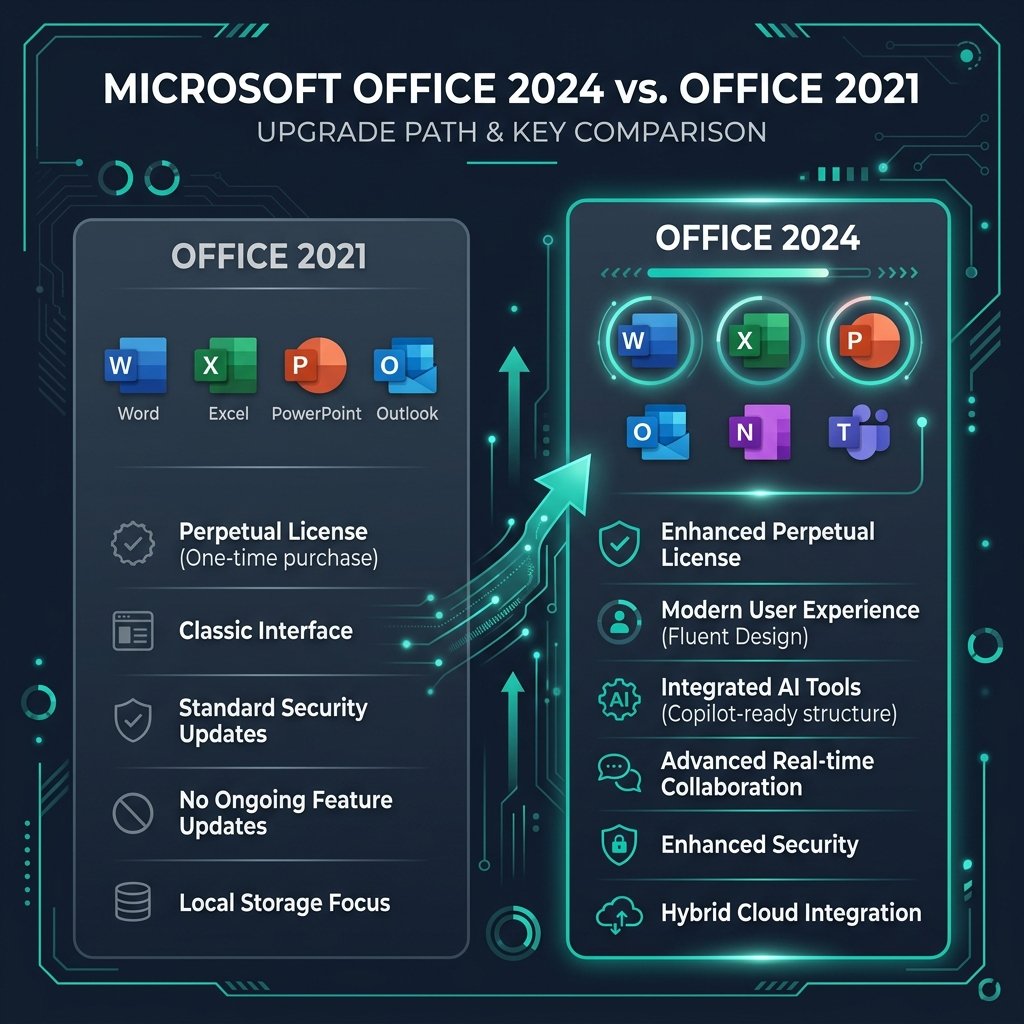
Office 2024 vs Office 2021: Is It Worth Upgrading?
If you are currently using Office 2021, upgrading to Microsoft Office 2024 is only worth it if you specifically need the new ...

How to Check If Your Windows Is Activated (And What Edition You Have)
To check your Windows activation status, press the Windows Key + I to open Settings. In Windows 11, go to System > Activation. In Wi...

How to Link Your Windows License to Your Microsoft Account
To link your Windows license to your Microsoft account, go to Settings > Update & Security (or System in Windows 11) > Activa...
How to Install Microsoft Office 2024: Download, Setup, and Activation Guide
To successfully install Microsoft Office 2024 (such as the Home & Business or Home & Student editions), you must fir...
How to Clean Install Windows 11 Without Losing Your Files
To clean install Windows 11 without losing your files, you don't need a USB drive. You can use the built-in "Reset this PC" feat...