








How to Convert Windows Server Evaluation to Retail

In this article:
- The Server Evaluation Limitation
- Step 1: Verify Available Editions
- Step 2: Run the DISM Conversion Command
The Server Evaluation Limitation
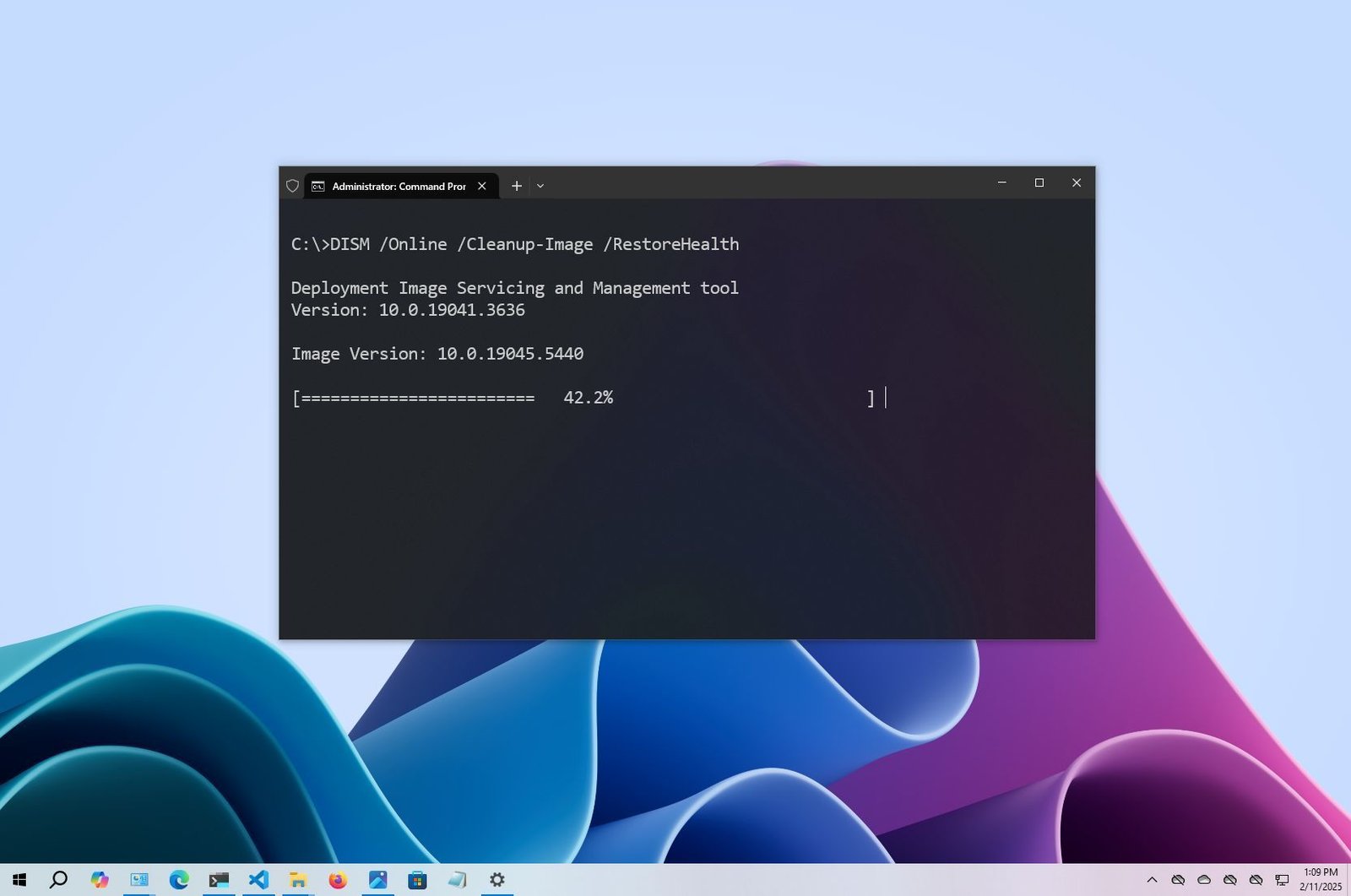
If you built your IT infrastructure using a 180-day Windows Server Evaluation ISO, you cannot activate it simply by typing a product key into the settings menu. You must use the Deployment Image Servicing and Management (DISM) command-line tool to convert the core edition.
[Insert Image: A dark, high-contrast screenshot of the Command Prompt showing a DISM command]
Step 1: Verify Available Editions
- Open Command Prompt as an Administrator.
- First, verify which editions your current server is eligible to upgrade to by running this command:
DISM /online /Get-TargetEditions
Step 2: Run the DISM Conversion Command
To convert your system and apply your Sorted Keys retail product key, carefully enter the following command.
📝 Formatting Note: Replace
ServerStandard with ServerDatacenter if applicable, and replace the XXXXX placeholders with your actual 25-character product key.- Type:
DISM /online /Set-Edition:ServerStandard /ProductKey:XXXXX-XXXXX-XXXXX-XXXXX-XXXXX /AcceptEula - Press Enter.
- The process may take several minutes and will often appear stuck at 10%. Do not close the window or interrupt the process.
- Once the conversion completes, the prompt will ask if you want to restart the server. Type Y.
Upon reboot, your server will be fully converted and activated on the Retail licensing channel.
Related Posts
How to Set Up a Windows Server for Your Small Business: Beginner’s Guide
Table of Contents
Why Set Up a Windows Server?
Step 1: Choose the R...
Windows Server 2022 vs 2019: Which is Best for Your Business?
Choosing the right operating system for your enterprise infrastructure is a critical decision that impacts security, performance, and c...
How to Install Remote Desktop Services (RDS) CALs
In this article:Step 1: Install the Licensing Role
Step 2: Activate the Licensing Server
Step 3: Install Your Retail CALs...