How to Upgrade from Windows 10 Home to Windows 10 Pro (Step-by-Step, No Reinstall)

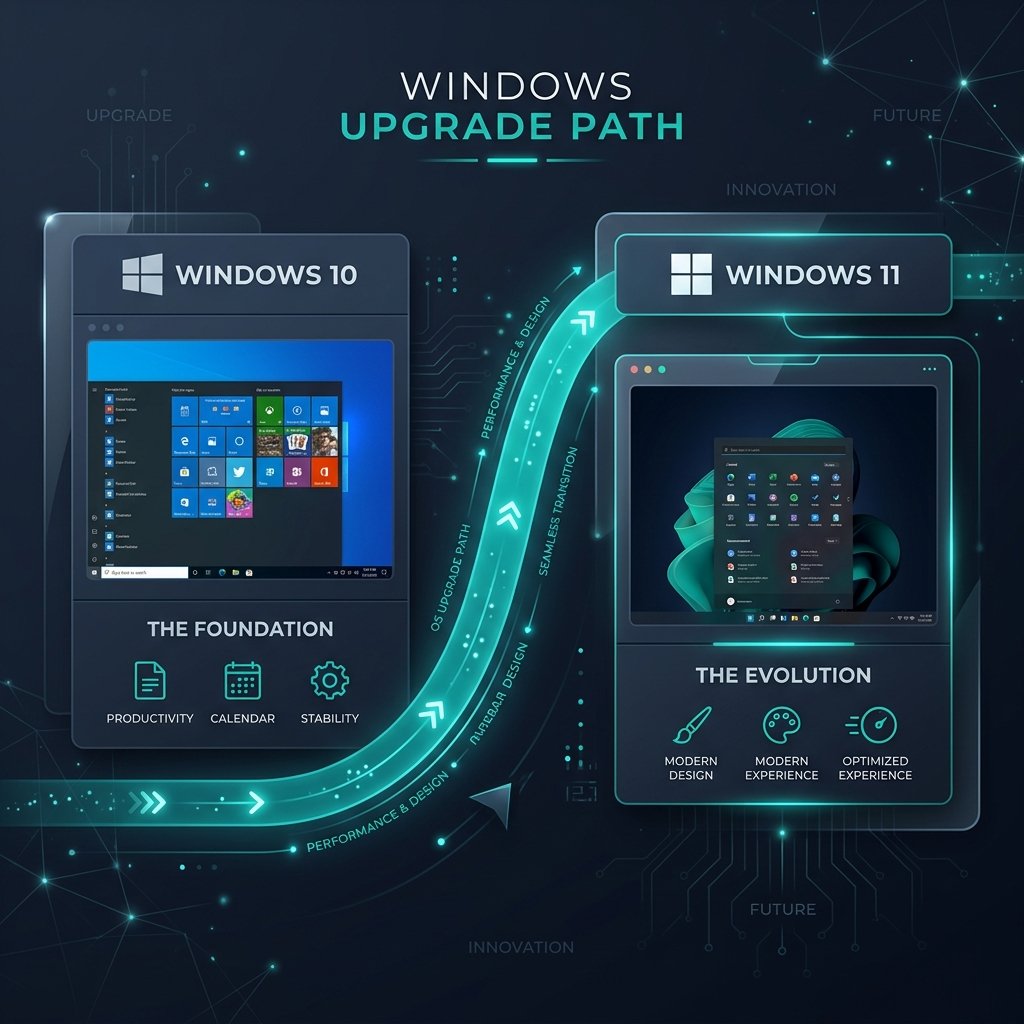
Upgrading from Windows 10 Home to Windows 10 Pro is the single most effective way to unlock enterprise-grade productivity, full-disk BitLocker encryption, Remote Desktop host capabilities, and Hyper-V virtualization. Best of all, you do not need to format your drive, reinstall Windows, or lose any personal files. The underlying bits for Windows 10 Pro already reside on your computer—activating a valid license key simply unlocks them in under 5 minutes.
⚡ AI Key Takeaways: How to Upgrade Without Data Loss
- In-Place Unlock: Windows 10 Pro features are unlocked directly through Windows Settings or Command Prompt; your apps, documents, and settings remain 100% untouched.
- Offline Transition Method: If your system displays activation error
0x803fa067, disconnect from the internet temporarily, apply Microsoft’s generic staging key, reboot, and enter your genuine retail key once online. - Genuine Retail Entitlement: Unlike OEM keys tied permanently to a motherboard, an official retail key from Sorted Keys ($22.00) gives you transfer rights and lifetime Microsoft account digital binding.
- 1. Why Upgrade from Windows 10 Home to Pro?
- 2. Pre-Upgrade Preparation Checklist
- 3. Method 1: Instant Upgrade via Windows Settings (Recommended)
- 4. Method 2: Offline Staging Upgrade (Fixing Error 0x803fa067)
- 5. Method 3: Command-Line Upgrade via slmgr.vbs
- 6. Windows 10 Home vs. Pro: Feature Comparison Table
- 7. Frequently Asked Questions
- 8. Related Deployment Resources
1. Why Upgrade from Windows 10 Home to Pro?
Windows 10 Home is engineered for basic consumer browsing and multimedia, but power users and professionals quickly encounter its strict boundaries. Windows 10 Pro delivers indispensable capabilities:
- BitLocker Drive Encryption: Shields your internal drives and USB storage against physical hardware theft.
- Remote Desktop (RDP Host): Access your high-performance desktop remotely from any laptop, iPad, or mobile device.
- Client Hyper-V & Windows Sandbox: Run virtual machines and test untrusted software in an isolated container without risking system stability.
- Group Policy Editor (gpedit.msc): Take granular control over OS telemetry, automatic updates, and background tasks.
- Active Directory & Azure AD Join: Connect seamlessly to corporate business domains and single sign-on services.
Upgrade to Windows 10 Pro Lifetime License
Official Microsoft Retail Product Key. Instant digital delivery via email with guaranteed 100% online activation and 24/7 technical support.
2. Pre-Upgrade Preparation Checklist
Before initiating the upgrade, complete these three quick checks to ensure seamless transition:
- Verify Current Edition: Press
Windows Key + R, typewinver, and press Enter. Confirm that your edition says Windows 10 Home (Version 21H2, 22H2, or newer). - Free Up Disk Space: Ensure at least 5 GB of free space is available on your C: drive for feature component staging.
- Install Pending Windows Updates: Go to Settings > Update & Security > Windows Update and install all pending quality updates, then restart.
3. Method 1: Instant Upgrade via Windows Settings (Recommended)
This is the standard, official Microsoft upgrade path that takes less than 5 minutes:
Open Activation Settings
Click the Start Menu, open Settings (gear icon), and navigate to Update & Security > Activation.
Select “Change product key”
Under the “Upgrade your edition of Windows” section, click on Change product key.
Enter Your 25-Character Windows 10 Pro Key
Type or paste your 25-character genuine retail product key and click Next.
Click “Start Upgrade”
Windows will display “Upgrading your edition of Windows”. Your PC will prepare files and restart automatically at 100%. Once booted, your system will be fully activated as Windows 10 Pro with all files preserved.
4. Method 2: Offline Staging Upgrade (Fixing Error 0x803fa067)
Sometimes, Microsoft activation servers experience a handshake failure when changing editions online, resulting in error 0x803fa067 or 0x80070057. If this occurs, Microsoft’s official offline staging method resolves it immediately:
Disconnect from the Internet
Unplug your Ethernet cable or turn off Wi-Fi (enable Airplane Mode). This stops Windows from attempting a live validation handshake during the initial component unpack.
Enter Microsoft Default Pro Staging Key
In Settings > Update & Security > Activation > Change product key, enter Microsoft’s official default staging key:
Note: This key does not activate Windows permanently; it simply commands the local OS to unpack Pro packages from the local WinSxS store.
Restart and Reconnect
Click Start Upgrade. Windows will reboot and reach 100% as Windows 10 Pro. Once back at your desktop, turn your internet back on.
Activate with Your Genuine Retail Key
Return to Settings > Activation > Change product key, enter your genuine Windows 10 Pro retail key from Sorted Keys, and click Activate to secure your permanent digital license.
5. Method 3: Command-Line Upgrade via slmgr.vbs
For system administrators and IT power users, the upgrade can also be triggered directly through an elevated Command Prompt:
1. Press Windows Key + S, type cmd, right-click and choose Run as administrator.
2. Install your product key:
3. Activate with Microsoft licensing servers:
4. Verify the permanent retail license status:
6. Windows 10 Home vs. Pro: Feature Comparison Table
| Feature / Capability | Windows 10 Home | Windows 10 Professional |
|---|---|---|
| Maximum RAM Supported | 128 GB | 2 TB (2,048 GB) |
| BitLocker Full-Disk Encryption | ❌ Not Available | ✅ Included (Drives & USB) |
| Remote Desktop (Host Workstation) | ❌ Client Only | ✅ Full Host Access |
| Client Hyper-V & Sandbox | ❌ Not Available | ✅ Included |
| Group Policy Editor (gpedit.msc) | ❌ Disabled | ✅ Full Administrative Control |
| Active Directory / Azure AD Join | ❌ Consumer Profiles Only | ✅ Full Domain Integration |
| Retail License Transfer Rights | ❌ OEM Only | ✅ 100% Transferable to New PC |
7. Frequently Asked Questions
Will upgrading from Windows 10 Home to Pro delete my files or applications?
No. An edition upgrade is an in-place component unlock. All your files, photos, installed programs, game libraries, and browser bookmarks remain exactly as they were.
How long does the upgrade process take?
On a modern PC with an SSD, the process typically takes between 3 to 7 minutes. It requires one automatic restart to finalize the feature switch.
Can I transfer this Windows 10 Pro license to a new PC in the future?
Yes. Because Sorted Keys sells official Microsoft Retail licenses, your key is not permanently locked to your motherboard. You can deactivate it and transfer it to a new computer or bind it to your Microsoft Account for digital entitlement roaming.
What should I do if the upgrade hangs at 100%?
If the screen pauses at 100%, do not force-shutdown your computer. Give it 5 to 10 minutes to register the background services. If it does not reboot automatically, restart manually through Start > Restart, and the Pro configuration will finish applying.