How to Install Microsoft Office 2024: Download, Setup, and Activation Guide

To successfully install Microsoft Office 2024 (such as the Home & Business or Home & Student editions), you must first link your 25-character product key to your personal Microsoft account. Simply go to setup.office.com, sign in with your Microsoft account, enter your product key, and click “Next”. This binds the software to your account permanently. Once linked, you can download the Office 2024 installer directly from your Microsoft Account dashboard and run the setup file to install Word, Excel, PowerPoint, and Outlook.
What You Need Before Starting
Before you begin the installation process, ensure you have the following:
- A Microsoft Account: A free Outlook, Hotmail, or Xbox account will work perfectly.
- A Genuine Product Key: A 25-character activation code. If you haven’t purchased one yet, you can instantly get a genuine Office Home and Business 2024 for PC & Mac license key right here at Sorted Keys.
- A Stable Internet Connection: The Office 2024 installer is several gigabytes in size and requires an active internet connection to download the core applications.
Step-by-Step Installation Guide
Follow these precise steps to safely download and install your software directly from Microsoft’s official servers.
Step 1: Go to the Official Setup Page
Open your web browser and navigate to the official Microsoft redemption portal: setup.office.com. Click the Sign In button and log in with your Microsoft Account credentials.
Step 2: Enter Your Product Key
Carefully type or paste your 25-character product key into the provided boxes. Select your country/region and your preferred language from the dropdown menus, then click Next.
💡 Pro Tip: Once you complete this step, the license key is permanently linked to your Microsoft account. You will never need to type the 25-character key again! If you ever get a new computer, you simply log into your Microsoft account to reinstall it.
Step 3: Download the Installer
After confirming your key, you will be redirected to your Microsoft Account Services & Subscriptions page. You should see your new “Office 2024” product listed here. Click the blue Install button next to it. A file named OfficeSetup.exe (on Windows) or a .pkg file (on Mac) will begin downloading.
Step 4: Run the Setup File
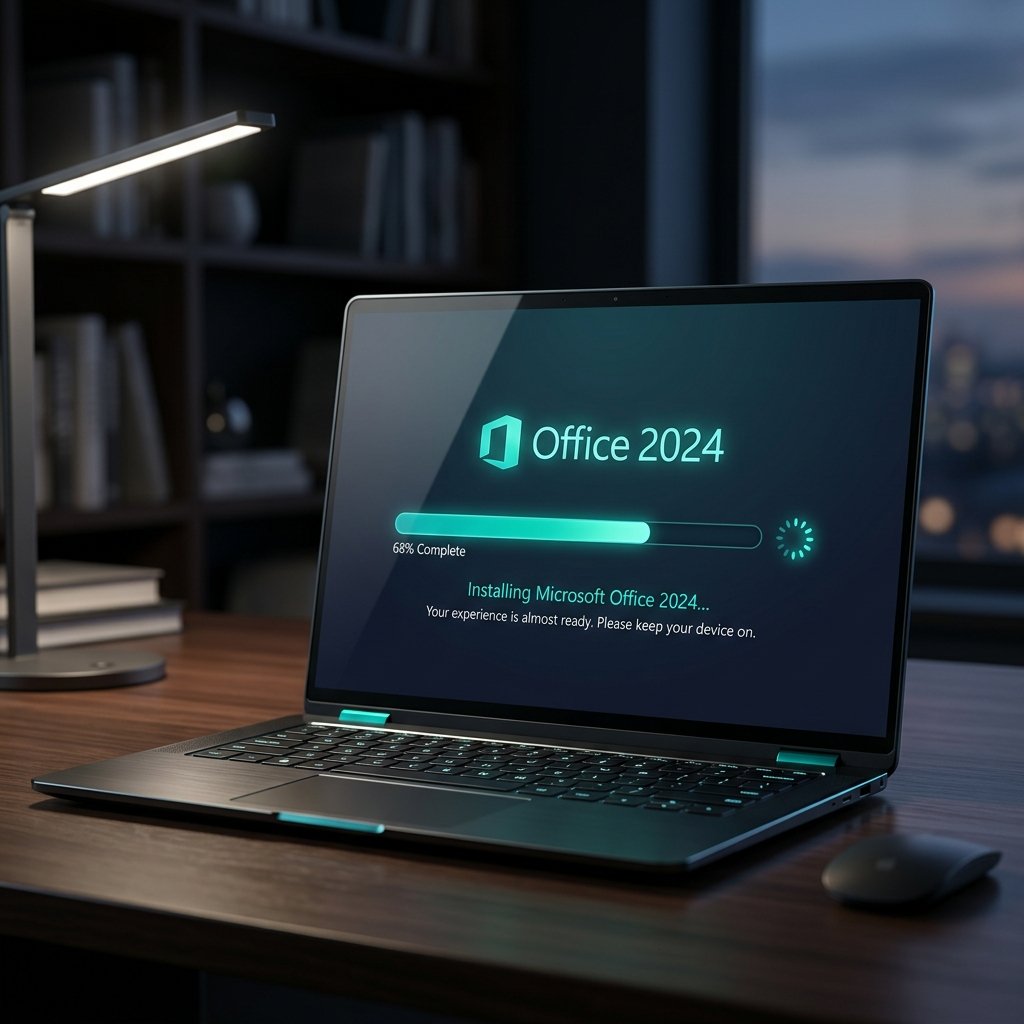
Locate the downloaded file in your Downloads folder and double-click it. If Windows asks if you want to allow the app to make changes to your device, click Yes. The installation will now run automatically in the background. Do not disconnect from the internet or restart your computer while the progress bar is filling.
Step 5: Sign In to Activate
Once the installation finishes, you will see a message saying “You’re all set! Office is installed now.” Close the window and open any Office application (like Microsoft Word). When prompted to accept the license agreement, click Accept. Finally, sign into Word using the exact same Microsoft account you used in Step 1. Your software is now activated and ready to use!
Running into an error during the final activation screen? Check out our complete How To Activate Microsoft Office Step-By-Step Guide for troubleshooting tips.
Frequently Asked Questions
Do I have to pay a monthly subscription for Office 2024?
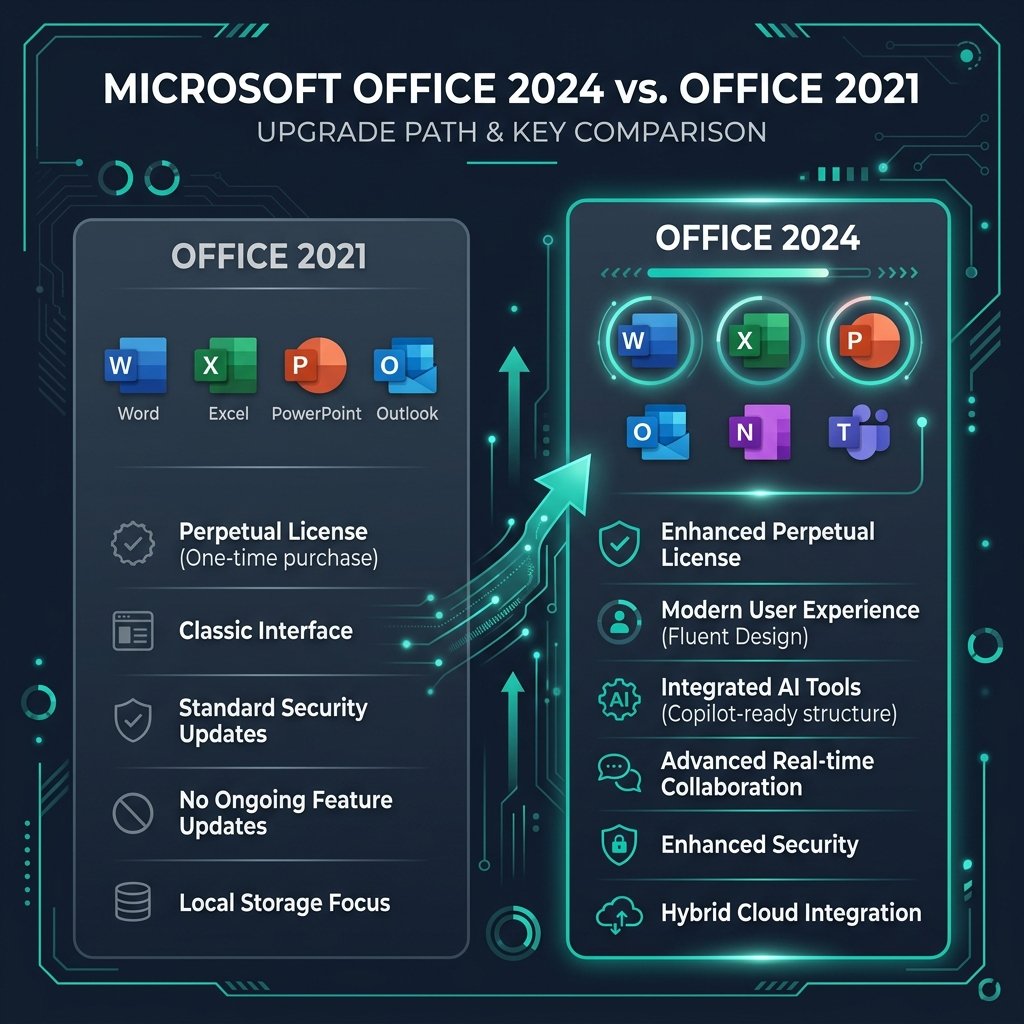
No. Office 2024 (including Home & Business and Home & Student) is a “perpetual” license. This means it is a one-time purchase with no recurring monthly or annual fees.
Can I install Office 2024 on multiple computers?
Standard retail Office 2024 licenses are strictly for 1 PC or 1 Mac. You cannot run the same license simultaneously on multiple devices. If you need it on a second computer, you must purchase a second license or transfer your existing license by uninstalling it from the first machine.
What is the difference between Home & Student and Home & Business?
Office 2024 Home & Student includes Word, Excel, and PowerPoint, and is licensed strictly for non-commercial use. Office 2024 Home & Business adds Microsoft Outlook to the suite and grants you the legal rights to use the software for commercial, business, or enterprise purposes.