How to Activate Windows 11 with a Product Key: Complete Guide

Whether you are provisioning a new enterprise fleet or building a custom PC for your home office, activating your operating system is the most critical step in the deployment process. An unactivated machine is locked out of personalization features and, more importantly, blocked from receiving critical security patches. If you have your 25-character product key ready, activating Windows 11 takes less than 60 seconds.
Quick Answer: How to Activate Windows 11
- During Installation: Type your 25-character key when prompted on the “Activate Windows” setup screen.
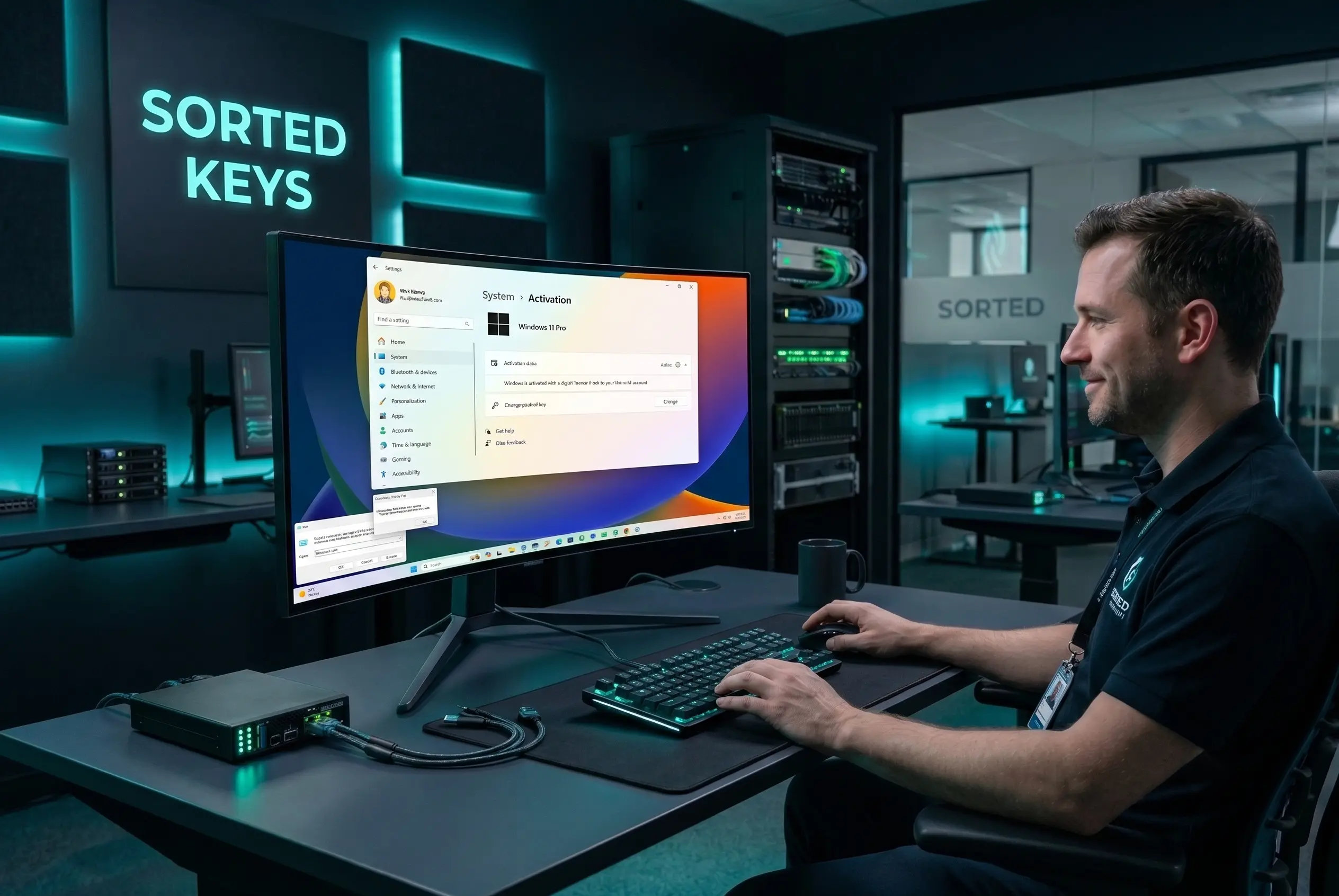
- After Installation: Navigate to Start > Settings > System > Activation, and click “Change product key”.
- Via Command Prompt: Open CMD as Administrator and type
slmgr.vbs /ipk YOUR-PRODUCT-KEYfollowed by Enter.
Executive Summary
Activating Windows 11 authenticates your software with Microsoft’s servers, unlocking all features and ensuring continuous delivery of essential security updates. You can deploy your license key dynamically during the initial setup phase, post-installation via the Settings menu, or through administrative command-line tools.
Method 1: Activating During Initial Setup
If you are performing a clean installation of Windows 11 via a bootable USB drive, the easiest deployment method is to input the key during the initial Windows Setup wizard.
- Boot your machine from the Windows 11 installation media.
- Select your language, time, and keyboard preferences, then click Next.
- When the “Activate Windows” screen appears, carefully type your 25-character product key.
- Click Next. The setup will automatically verify the key and install the correct edition (Home or Pro) associated with your license.
Method 2: Activating Through System Settings
If you skipped the activation step during setup, or if you recently purchased a digital license, you can easily activate your machine directly from the Windows desktop.
- Click the Start button and open Settings (the gear icon).
- On the left sidebar, ensure you are on the System tab.
- Scroll down and click on Activation.
- Look for the section labeled Change product key and click the Change button.
- Enter your 25-character product key into the blue prompt box and click Next to authenticate with Microsoft’s servers.
Method 3: Enterprise Activation via Command Prompt
For IT administrators deploying Volume Licensing (MAK/KMS) or troubleshooting an activation error, utilizing the Software Licensing Management Tool via command prompt is the most efficient architectural approach.
- Click Start, type CMD, right-click on Command Prompt, and select Run as administrator.
- To install your product key, type the following command (replacing the Xs with your key) and press Enter:
slmgr.vbs /ipk XXXXX-XXXXX-XXXXX-XXXXX-XXXXX - Wait for the “Installed product key successfully” confirmation box.
- To force the machine to connect to Microsoft and activate, type:
slmgr.vbs /ato - Press Enter and wait for the successful activation confirmation.
🔒 Ensure Complete Enterprise Licensing Compliance
Don’t let verification locks, compliance errors, or shadow software stall your deployment schedules. Sorted Keys LLC provides fully compliant, genuine Microsoft volume licensing solutions with instant digital delivery and enterprise-grade support documentation. View our full catalog directly at sortedkeys.com.
Next Steps & Infrastructure Support
If your activation fails, ensure that you are connected to the internet and that the product key you purchased exactly matches the edition of Windows installed on your machine (e.g., a Pro key will not activate a Home installation). If you are deploying a new PC and need a verified, guaranteed license, you can secure an authentic Windows 11 Professional key directly from our store. For volume procurement or deployment troubleshooting, reach out to the expert team at sortedkeys.com.