How to Buy and Set Up a Windows 11 License for Your Custom-Built PC

Building your own custom PC is an incredibly rewarding experience, but the job isn’t finished once you’ve screwed in the last panel. The most critical final step is installing your operating system and securing a legitimate Windows 11 license for your custom PC. If you’re building a new system from scratch, it won’t come with an OS pre-installed, meaning you need to handle the installation and activation yourself. In this guide, we’ll walk you through exactly how to choose the right license, install Windows using a USB drive, and activate it properly.
Table of Contents
Step 1: Choosing the Right Windows 11 Edition
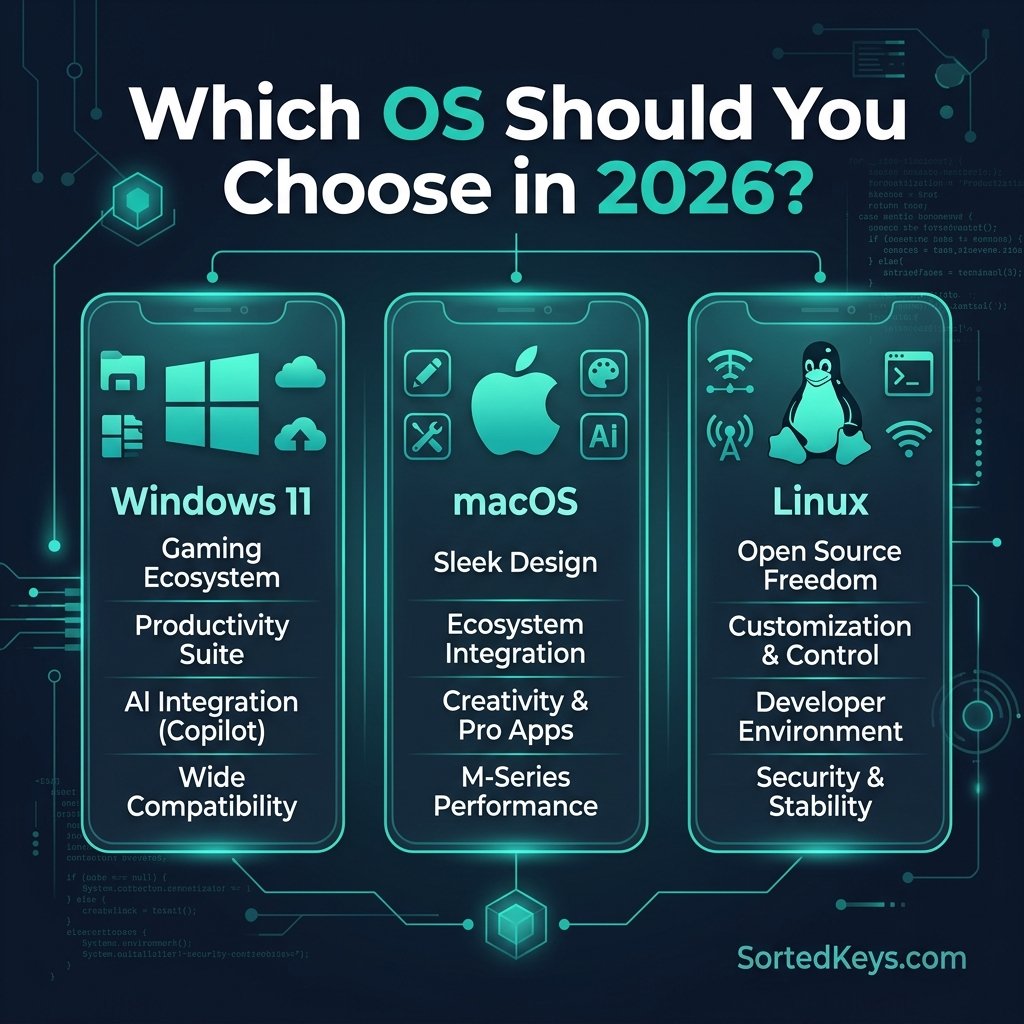
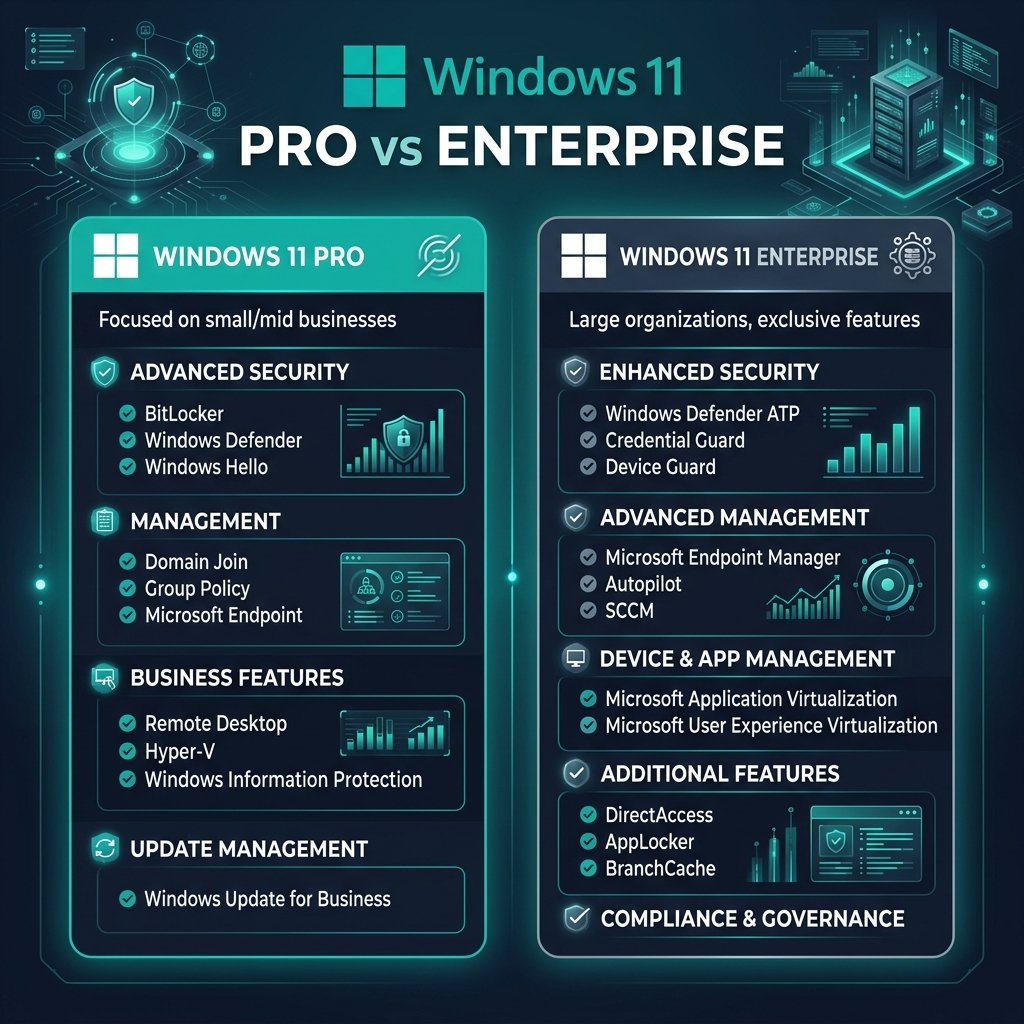
When buying an OS for a newly built system, you’ll need to choose between the two primary consumer editions.
- Windows 11 Home: Perfect for most gamers and everyday users.
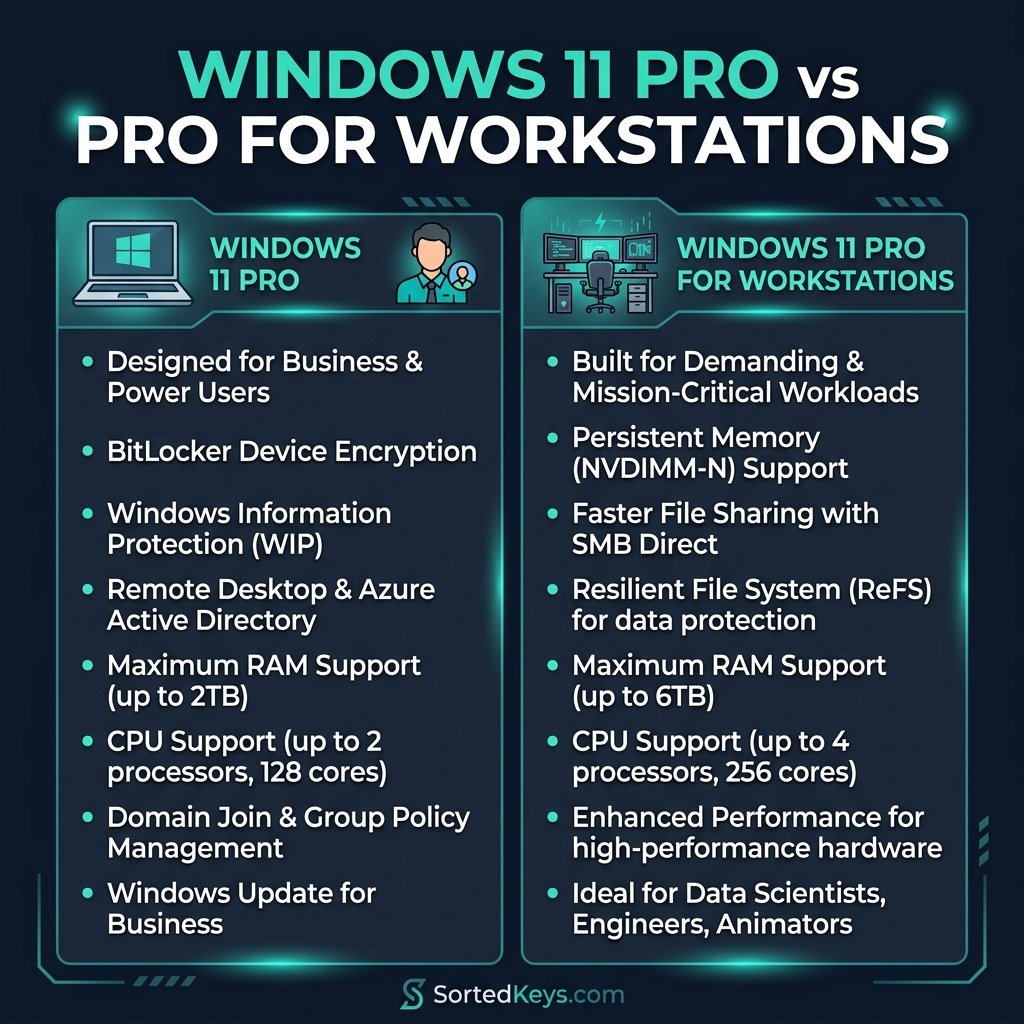
- Windows 11 Pro: Includes advanced features like BitLocker encryption, Remote Desktop, and Hyper-V virtualization. Ideal for power users and professionals.
For custom builds, we highly recommend getting a Retail license rather than an OEM key. Retail licenses can be transferred to a new motherboard if you ever upgrade your PC in the future, while OEM keys are permanently tied to the first motherboard they activate on. You can grab a genuine Windows 11 Pro license key or Windows 11 Home license key directly from our store with instant delivery.
Step 2: Creating a Bootable USB Installation Drive
Before you turn on your new PC, you need a way to install the operating system.
- Grab a blank USB flash drive with at least 8GB of space.
- Go to another working computer and visit the official Microsoft Windows 11 download page.
- Under “Create Windows 11 Installation Media,” click Download Now.
- Run the Media Creation Tool and follow the prompts to format your USB drive into a Windows 11 installer.
(For a more detailed breakdown, check out our full guide on how to create a Windows 11 bootable USB).
Step 3: Installing Windows 11 on Your New Build
Once your USB drive is ready, it’s time to boot up your new machine.
- Insert the USB drive into the back of your new motherboard.
- Power on the PC and repeatedly press the Delete or F2 key to enter your BIOS.
- Ensure that Secure Boot and fTPM (TPM 2.0) are enabled in your BIOS settings, as these are strict requirements for Windows 11.
- Save and exit the BIOS. The PC should now boot directly from the USB drive.
- Follow the Windows Setup wizard. When prompted for a product key, you can enter the one you purchased, or click “I don’t have a product key” to skip it and activate later once you reach the desktop.
- Select the drive where you want to install Windows (usually your fastest NVMe SSD) and let the installation complete.
Step 4: Activating Your License
Once you’re on the desktop and connected to the internet, you need to verify your activation.
- Click the Start button and open Settings.
- Go to System > Activation.
- If you didn’t enter your key during setup, click Change product key and enter your 25-character code now.
- Your system will communicate with Microsoft’s servers, and the status should change to “Active.”
Need an OS for Your New Build?
Don’t risk your new hardware with shady activator tools. Get a genuine, permanent Windows 11 license delivered instantly to your inbox.
Get Windows 11 ProFrequently Asked Questions (FAQ)
Can I install Windows 11 for free on a new PC?
Yes, you can install and use Windows 11 without activating it immediately. However, you will be locked out of all personalization settings (like changing your wallpaper), and a persistent “Activate Windows” watermark will remain on your screen until you purchase a valid license.
Do I need to buy Windows 11 Pro for gaming?
No. Windows 11 Home supports all the same gaming features (like DirectStorage and Auto HDR) as the Pro version. You only need Pro if you specifically require features like BitLocker encryption or Hyper-V.
Will my new custom PC come with a product key?
No. Unlike pre-built computers from companies like Dell or HP, a custom-built PC consists only of the individual hardware components you purchased. You must buy the operating system separately.